


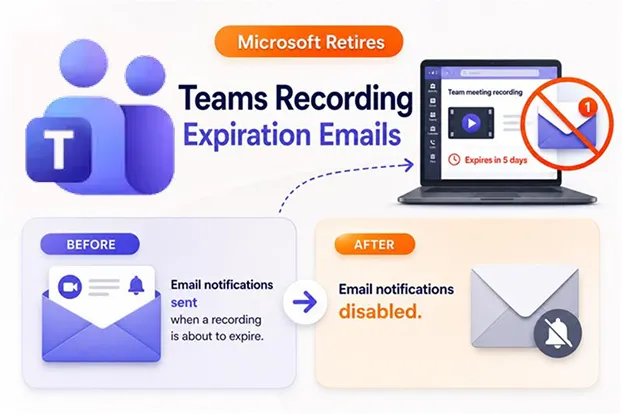
Microsoft is preparing to roll out a notable change to the Teams Meeting Recording (TMR) experience – the company will disable the automatic email notifications that currently alert users when their Teams meeting recordings are nearing expiration. While this may seem like a minor tweak on the surface, it touches every Microsoft 365 tenant globally and affects organizations that rely on Teams recordings for collaboration, training, and compliance.
In this blog, we’ll unpack exactly what’s changing, why Microsoft is making this move, who is affected, and most importantly, what IT admins and end users should do to prepare.
Understanding Teams Meeting Recording Notifications
Whenever a Teams meeting is recorded, the recording is automatically saved to the organizer’s OneDrive (for non-channel meetings) or to the SharePoint site associated with the Team (for channel meetings). Each recording is assigned a default expiration period – typically 120 days – unless the admin or user modifies it through retention policies or manually extends the expiration date.
To help users act before recordings are deleted, Microsoft 365 currently sends email notifications reminding them that their recording is about to expire. These emails have served as a safety net, allowing users to download, extend, or relocate important recordings before they’re removed. That safety net is about to be retired.
What Is Changing?
Microsoft will disable Teams Meeting Recording (TMR) expiration notification emails for all Microsoft 365 tenants. Once the change rolls out:
- Users will no longer receive email notifications when a Teams meeting recording is about to expire
- This applies universally to all tenants and all affected users
This is an email-only change. No backend change is being made to how recordings are stored, expired, or deleted.
What Is Not Changing?
This is the most important clarification for admins and users alike. Only the email notification is being removed. Recording expiration and deletion policies remain completely unchanged, and no admin policy updates are required.
In practical terms, this means:
- Recordings will still expire on the same schedule as before
- Automatic deletion behavior continues exactly as configured
- Retention policies, compliance holds, and custom expiration settings are unaffected
- Admins do not need to reconfigure anything in the Teams Admin Center, SharePoint, or OneDrive
If your organization relies on retention labels or compliance policies for recordings, those will continue to function normally.
Who Will Be Affected?
The scope of this change is broad and includes:
- All Microsoft 365 tenants
- Any user who currently receives Teams meeting recording expiration emails
- Helpdesk and IT support teams who field questions about these notifications
- Compliance and records management teams whose documentation references these emails
Essentially, if your organization uses Microsoft Teams and records meetings, this change will reach you.
Why Is Microsoft Making This Change?
User behavior led to this decision. Customer feedback indicated that the expiration notification emails had low engagement rates – most recipients either ignored them, filtered them into subfolders, or deleted them without action.
Microsoft says the change is intended to reduce low-value email notifications and minimize inbox noise. Specifically, Microsoft aims to:
- Improve the overall signal-to-noise ratio in Microsoft 365 email communications
- Reduce unnecessary email volume across tenants
- Keep user inboxes focused on notifications that truly require attention
When Will This Happen?
Microsoft originally scheduled this change to roll out on June 1, 2026, disabling Teams Meeting Recording (TMR) expiration notification emails by default across all Microsoft 365 tenants. However, after reviewing customer feedback, Microsoft paused the rollout on April 29, 2026, and the new go-live date will be announced through the Microsoft 365 Message Center.
Admins should monitor the Microsoft 365 Message Center for the updated date and prepare internal communications in advance so they can act quickly once Microsoft confirms the new rollout.
How to Prepare Your Organization
Although no admin action is strictly required, proactive preparation will prevent confusion and support tickets once the change goes live. Consider taking the following steps:
- Notify end users and helpdesk teams in advance so the change isn’t a surprise
- Update internal documentation, SOPs, knowledge base articles, and training materials that reference expiration emails
- Educate users on how to locate and manage their recordings directly in OneDrive or SharePoint
- Build alternative reminder mechanisms using Power Automate flows, scheduled scripts, or retention policies if your workflows depend on these notifications
- Review compliance documentation to confirm no internal processes rely on the expiration emails as audit evidence or workflow triggers
- Communicate proactively through your organization’s change management channels (email announcements, intranet posts, Teams announcements)
Recommended Guidance for End Users
End users are the most directly affected, so it’s important to give them practical guidance to manage recordings better:
- Download critical recordings immediately after important meetings rather than waiting for expiration reminders
- Move important recordings to a SharePoint library so they can be properly managed and kept safe
- Apply retention labels to recordings that must be preserved beyond the default expiration window
- Bookmark the Recordings folder in OneDrive for fast, daily access
- Set personal calendar reminders for high-value recordings so retention decisions happen proactively
- Use Teams chat or channels to share recording links with attendees while the recording is still live
- Leverage SharePoint metadata to categorize recordings by project, client, or retention class
Admin Note:
Organizations that want to continue receiving Teams recording expiration email notifications will have an option to do so. Microsoft plans to create a new per-tenant setting before June 1. Once the setting is available, Microsoft will publish another Message Center post and update its documentation.
Encouraging these habits now will reduce the risk of important recordings being unexpectedly deleted once expiration email reminders are disabled by default.
Admin Checklist Before Rollout
Use this quick checklist to confirm your organization is ready:
- Message Center subscriptions enabled and monitored
- Internal documentation reviewed and updated
- Helpdesk team briefed and provided with talking points
- End-user communication drafted and scheduled
- Power Automate or alternative reminder flows tested (if applicable)
- Compliance team sign-off obtained
- Training materials refreshed
Final Thoughts
This may look like a small update, but it shows a bigger change in how Microsoft wants to manage notifications in Microsoft 365. Instead of sending too many emails, Microsoft is focusing on useful alerts inside the product.
For more details or to share feedback, visit the official Microsoft Tech Community discussion.

















 Migrate
 Manage
 Migrate Microsoft 365








