


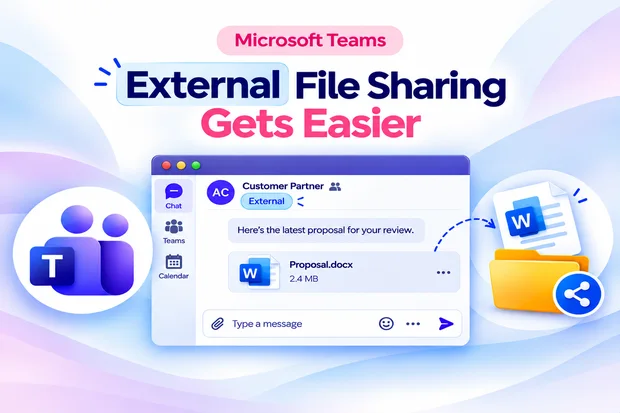
A document is ready to share, but getting it to your customer often means copying a link, checking permissions, and handling another access request. Microsoft’s latest Teams update simplifies that process with direct file attachments and drag-and-drop sharing in external chats.
You can share documents within the conversation while your organization’s OneDrive and SharePoint controls continue to govern access. The result is a smoother collaboration experience without removing the safeguards your business relies on.
Share Files Without Leaving Teams
The improved Microsoft Teams external file sharing experience enables the Attach file paperclip and drag-and-drop options by default. Instead of switching between sharing steps, you can upload a document directly into your external chat.
The update applies to the Teams desktop and web apps across:
- External one-to-one chats.
- External group chats.
- Meeting chats with external participants.
You can still paste file links into a conversation. Direct attachments simply give you another way to share documents, subject to your organization’s existing policies.
💬 What Slows Down Your Sharing?
Consider your most recent document exchange with a customer or partner. Identifying the extra steps can help you see where direct attachments would make a difference.
- Did you need to send the document in a separate email?
- Did the recipient have to request access?
Pinpoint the file-sharing step that causes the most friction and choose one you would simplify.
Fewer Permission Steps, More Control
When automatic permission assignment is enabled, Teams assigns access to chat participants for files you upload through the paperclip or drag-and-drop experience. Your organization’s OneDrive and SharePoint policies still determine whether that access is allowed.
You remain in control of the file and can:
- Review access before sending.
- Modify or remove permissions before sharing.
- Change or revoke access after sharing.
This automatic permission assignment applies only to files uploaded through these attachment experiences. If you paste an existing file link, its permissions remain unchanged.
For example, when you upload a proposal into an external customer chat, Teams can assign access to the participants where your organization’s policies permit it. You can review those permissions before sending the message.
📎 Pick Your First Shared File
Start with a document you regularly exchange with a customer. It is a simple way to identify where a more direct sharing experience could reduce extra work.
- A proposal or quotation.
- A project status report.
- A presentation or onboarding guide.
Come up with your choice and the sharing step you would like to eliminate.
Easier Sharing, Same Security Boundaries
Files you upload to external Teams chats are stored in your OneDrive and display an External label. The updated experience does not change your organization’s OneDrive or SharePoint external-sharing settings.
Existing safeguards continue to apply, including:
- OneDrive and SharePoint sharing controls.
- Sensitivity labels.
- Domain restrictions.
- Security protections.
An easier attachment process does not mean unrestricted access. External recipients must still meet the file’s permissions and the sharing policies your organization has configured.
Teams Admin Controls That Matter
If you manage Microsoft Teams, you can control external chat attachments and automatic permission assignment separately through Teams PowerShell. This lets you choose whether to allow direct uploads and whether Teams should assign access automatically.
If your organization previously disabled external chat attachments, you must reapply the disabled setting once the updated experience reaches your tenant to keep attachments blocked.
To disable file attachments in external chats:
Set-CsTeamsFilesPolicy -Identity Global -FileSharingInChatsWithExternalUsers Disabled
To verify the attachment setting:
Get-CsTeamsFilesPolicy | Select Identity, FileSharingInChatsWithExternalUsers
Disabling attachments does not stop users from pasting file links. Access to those links remains governed by the file’s permissions and applicable OneDrive and SharePoint sharing policies.
To allow attachments without automatic permission assignment:
Set-CsTeamsMessagingPolicy -Identity Global -AutoShareFilesInExternalChats Disabled
With automatic permission assignment disabled, you may need to grant access manually before an external recipient can open the uploaded file. Allow several hours for policy changes to appear in the user experience.
🔐 Where Would Your Team Draw the Line?
The right sharing approach depends on how you handle customer documents and access approvals.
- Would automatic permission assignment suit your workflow?
- Would manually granting access provide the control you need?
Figure out the approach that best fits your external collaboration needs.
Prepare Your Team for Smarter Sharing
You do not need to take action to preserve existing OneDrive and SharePoint external-sharing restrictions. However, reviewing your settings and guidance can help prevent confusion about how attachments and file permissions work together.
Use these steps to prepare:
- Review your SharePoint, OneDrive, and Microsoft Entra external-sharing configurations.
- Explain the difference between Teams attachment controls and file-access controls to your helpdesk.
- Update internal training and support documentation.
- Check permissions before sharing sensitive documents.
- Remember that pasted links retain their existing permissions.
With clear guidance, you can use the improved Teams file-sharing experience more confidently while keeping external access aligned with your organization’s requirements.
Simplify Sharing, Stay in Control
The improved Microsoft Teams external file sharing experience helps you keep document exchanges within the conversation. Direct attachments and automatic permission assignment reduce manual steps while existing OneDrive and SharePoint policies continue to govern access.
Review your sharing settings, choose the permission approach that fits your workflow, and make sure you understand who can access each file. Easier collaboration works best when convenience and control go together.
Explore Microsoft’s Official Guidance
Review Microsoft’s official resources to configure secure external file sharing and align Teams collaboration with enterprise policies.

















 Migrate
 Manage
 Migrate Microsoft 365








