


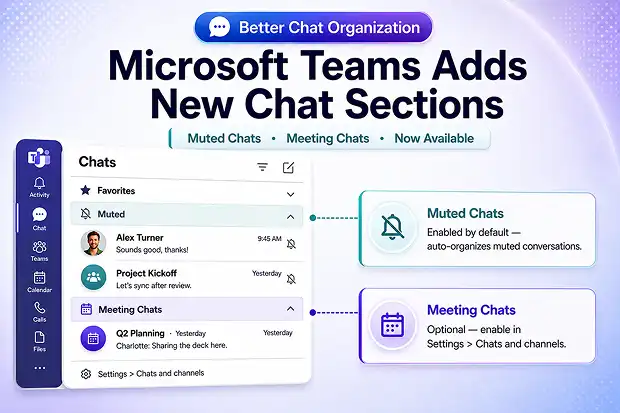
Microsoft Teams is making it easier for users to organize their conversations with two new chat sections: Muted chats and Meeting chats.
As Teams becomes the central place for workplace communication, users often deal with long chat lists filled with one-to-one chats, group chats, meeting conversations, and muted threads. Over time, this can make it harder to focus on important conversations.
With this update, Teams will help users separate certain types of chats into dedicated sections, making the chat list cleaner and easier to manage.
What Is Changing in Microsoft Teams?
Microsoft Teams is introducing two new system chat sections:
Muted chats
Meeting chats
These sections are designed to group specific conversations automatically. Users can turn these sections on or off and reorder them based on how they prefer to manage their chat list.
This update is focused on improving the user experience. It does not require any technical setup from admins.
Muted Chats Section
The Muted chats section will be enabled by default.
When a user mutes a chat, and that chat is not already placed in Favorites or a user-created section, Teams will automatically move it into the Muted chats section.
This helps reduce clutter in the main chat list while still keeping muted conversations accessible.
Unread muted chats will continue to appear in bold, so users can still identify new activity when needed.
Meeting Chats Section
The Meeting chats section will be available for users who want to organize meeting-related conversations separately.
Unlike Muted chats, this section is not enabled by default. Users can turn it on from Teams settings.
Once enabled, meeting chats that are not already in Favorites or user-created sections will automatically move into the Meeting chats section.
Unread meeting chats will still appear in bold and continue to contribute to badge counts, so users will not miss new messages from meeting conversations.
Favorites and Custom Sections Will Not Be Changed
Chats that users have already placed in Favorites or in their own custom sections will not be moved automatically.
This is important because many users already organize key conversations manually. Teams will respect those existing choices and only move eligible muted or meeting chats that are not already organized elsewhere.
Users can also drag and drop the new sections to reorder them in the chat list.
Can Admins Control These Sections?
No admin controls are available for these new chat sections.
Admins cannot enable, disable, or enforce these sections for users. The experience is managed by individual users inside Microsoft Teams.
This means the main responsibility for IT teams is user awareness. Some users may notice that muted conversations appear in a separate section and may contact support if they are unsure where their chats went.
How Users Can Manage These Sections
Users can manage these chat sections in Microsoft Teams by going to:
Settings > Chats and channels
From there, users can enable or disable available chat sections and adjust how their chat list is organized.
This gives users more flexibility to personalize Teams based on their working style.
What Admins Should Do
No admin action is required for this update.
However, Microsoft 365 admins and helpdesk teams may want to prepare a simple user communication explaining the change.
Recommended actions include:
Inform users that Teams is adding new chat organization options.
Let users know that muted chats may appear in a separate section.
Guide users to Settings > Chats and channels if they want to manage these sections.
Prepare helpdesk teams for questions about missing or moved chats.
Suggested User Communication
Here is a simple message you can share internally:
Microsoft Teams is introducing new chat sections to help organize conversations. Muted chats may now appear in a separate section, and users can also choose to enable a Meeting chats section. You can manage these options in Teams by going to Settings > Chats and channels.
Why This Update Matters
Chat overload is a common issue in Microsoft Teams. Users may mute conversations to reduce notifications, but those chats can still remain visible in the main chat list. Meeting chats can also accumulate quickly, especially for users who attend many meetings every day.
By introducing dedicated sections for muted and meeting chats, Teams gives users a better way to manage communication without losing access to important information.
This change can help users:
Keep their main chat list cleaner
Find active conversations more easily
Separate meeting-related discussions from regular chats
Reduce distraction from muted conversations
Customize Teams based on personal workflow
Final Thoughts
The new Muted chats and Meeting chats sections are a practical improvement to the Microsoft Teams chat experience.
For users, this provides more control over how conversations are organized. For admins and helpdesk teams, the update does not require configuration, but it is worth communicating clearly so users understand the new behavior.
As Teams continues to grow as a daily collaboration hub, small improvements like this can make a meaningful difference in how users manage communication and stay focused.
















