


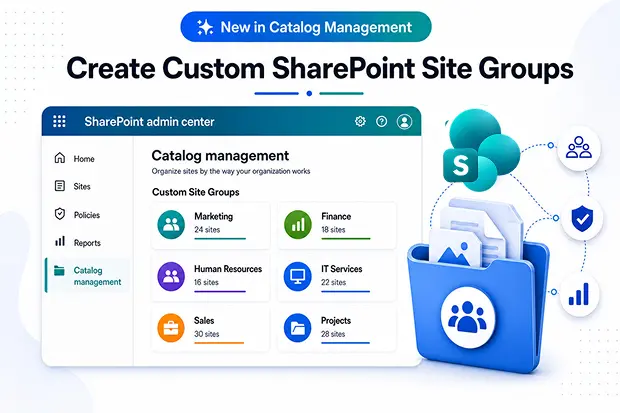
If you manage Microsoft 365, you probably feel how quickly things get messy as new SharePoint sites appear for every project, team and initiative.
This update to SharePoint Advanced Management gives you a more human way to bring order to that chaos by letting you create custom groups of sites that mirror how your organization actually works.
This article walks through the licensing pre-requisites, what is new in Catalog Management, why it matters to you, and how you can start using it in your tenant with minimal disruption.
Licensing Prerequisites for Catalog Management
To use Catalog Management, your tenant must meet the licensing prerequisites for SharePoint Advanced Management. You can choose one of several licensing paths depending on your Microsoft 365 strategy.
You can unlock Catalog Management in any of these ways:
- Copilot shortcut
Assign at least one Microsoft 365 Copilot license to a user.
This automatically enables the SharePoint Advanced Management toolkit, including Catalog Management, for SharePoint administrators. - Dedicated add-on
Purchase the SharePoint Advanced Management Plan 1 standalone add on if you are not ready for Copilot.
These suits organizations using SharePoint K, P1 or P2 that still need advanced governance. - Premium suite path
Upgrade to a premium suite such as Microsoft 365 E7, which bundles Copilot and advanced management features.
In all cases, ensure you also have a supported base license like Office 365 E3 or E5, or Microsoft 365 E1, E3, E5 or A5, and that admins hold the SharePoint Administrator role to access Catalog Management in the SharePoint admin center.
Platforms Where Catalog Management Lives
- Catalog Management is part of SharePoint Advanced Management and is accessed from the SharePoint admin center under Reports and Catalog management.

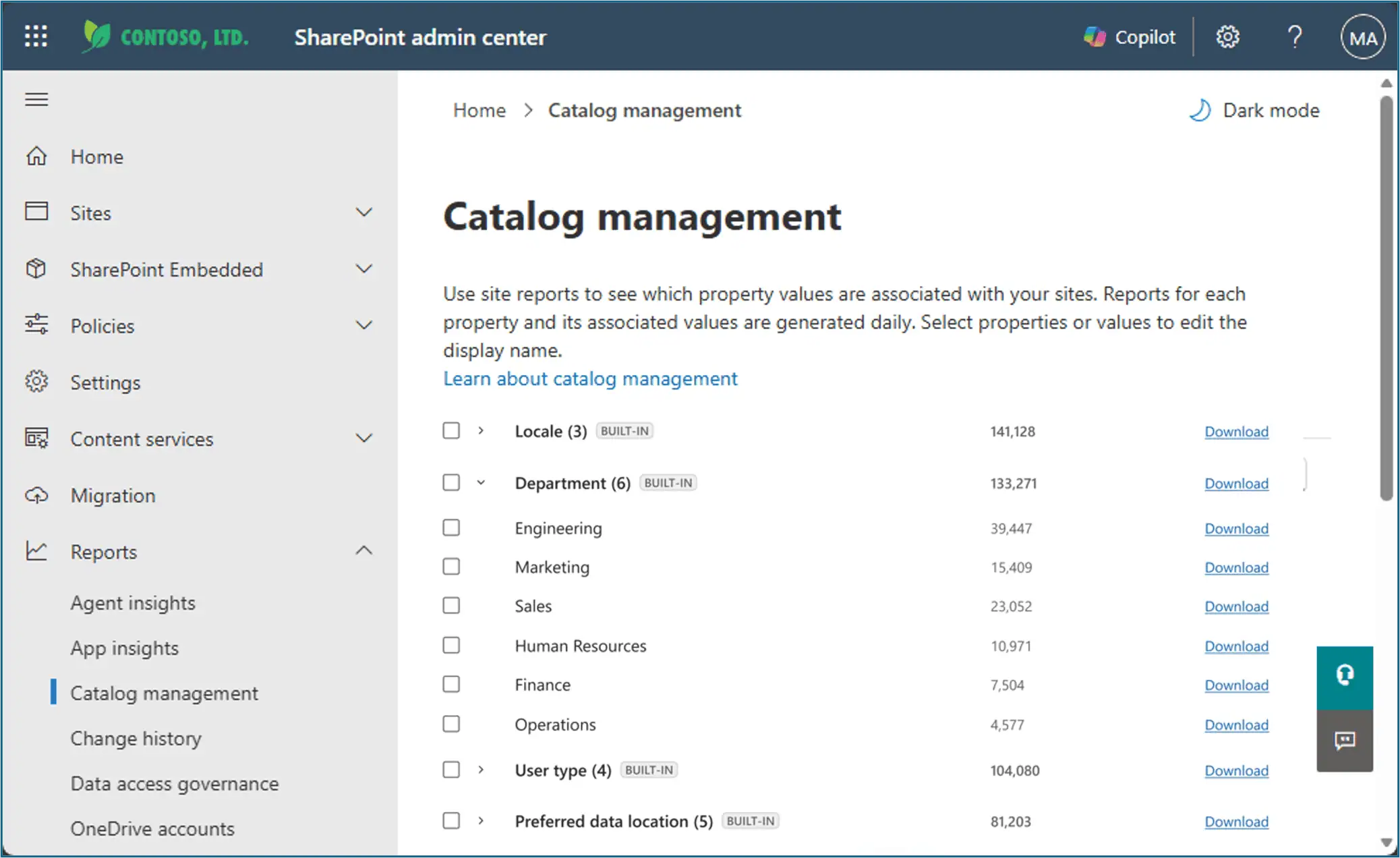
- It uses existing site and user metadata, pulled from the SharePoint admin center and underlying site properties, so you can organize content without redesigning your information architecture.
What’s New in Catalog Management
Microsoft is enhancing Catalog Management in SharePoint Advanced Management so you can classify and organize SharePoint sites using flexible, business friendly categories that make sense in your daily work.
Key capabilities include:
- Bulk creation of catalog categories using CSV uploads
- Using SharePoint site properties to assign sites to the right categories
- Targeting category visibility with Microsoft Entra ID extension attributes
- Building taxonomies aligned to departments, teams or business lines
These features give you a structured and relatable way to see how content is spread across your Microsoft 365 environment and to act on it with confidence.
Why Custom Site Groups Matter
Custom site groups help connect the way IT manages the tenant with the way you and your colleagues actually work every day.
By grouping sites logically, you can apply policies, reports and governance actions in a way that reflects real departments, projects and responsibilities.
Benefits include:
- Clear visibility into which departments or teams own specific sites and content areas
- Easier identification of high risk or high value content that needs closer attention
- Better alignment of lifecycle, storage and security policies with the business priorities you care about most
In practice, this means you stop treating all sites as equal and start prioritizing the ones that matter most to your organization.
How Admins Can Use the New Capabilities
With this update, admins gain more control over catalog categories using both technical metadata and business context that you already understand. This makes it easier to design governance that feels natural instead of purely technical.
Practical admin actions:
- Upload CSV files to bulk create catalog categories for departments, regions or business units
- Map existing site properties, such as department or project name, to those categories instead of inventing new fields
- Use Microsoft Entra ID attributes to control which users see specific categories based on their role or organization
- Prepare for future integrations such as departmental storage billing or scoped governance controls that rely on catalog groups
Because everyday user workflows remain unchanged, you can roll out catalog usage quietly in the background and avoid unnecessary disruption.
🧭 “Know Your Catalog” Awareness Series
You can build awareness gradually by creating a short and simple “Know Your Catalog” series for governance and information architecture stakeholders. This keeps everyone informed without overwhelming them with technical detail.
Ideas to try:
- Publish short internal posts that highlight one catalog scenario per week, such as department level reporting or regional oversight
- Host a quick demo session to show how sites roll up under departments or regions and how that helps decision making
- Maintain a FAQ page that answers common questions in plain language, including how catalog categories support governance and reporting
This steady, lightweight communication helps people see catalog management as a helpful tool rather than another complex system.
Governance, Reporting, and Future Scenarios
Catalog categories unlock richer governance and reporting experiences that give you a clearer picture of your content landscape. They help you understand where content lives, how it is used and which policies should apply, all from a single structured view.
Use cases you can enable:
- Administrative reporting that runs by department, region or other business group, making reports easier to interpret
- Governance boundaries that let you scope advanced management features to specific catalog groups instead of the entire tenant
- Storage and billing models that align pay as you go storage with catalog groupings for transparent departmental chargeback
- AI and Copilot scenarios that benefit from more structured content groupings and stronger content governance
As SharePoint Advanced Management continues to evolve, catalog groups are likely to power more admin and governance experiences that you can build on over time.
Recommended Preparation Steps
Even if you are not ready to fully adopt Catalog Management today, you can lay the groundwork so that future adoption is smoother and less disruptive.
Start with:
- Reviewing your current SharePoint information architecture and identifying where departmental or organizational taxonomies are missing or inconsistent
- Auditing existing SharePoint site properties that you can reuse for categorization, so you avoid creating duplicate or redundant fields
- Reviewing available Microsoft Entra ID extension attributes that can support category visibility and scoping for specific audiences
- Communicating upcoming capabilities to governance boards, information architects and SharePoint administrators so everyone understands the direction
These steps reduce future rework and help you roll out catalog-based governance in a controlled and predictable way.
🎯 “Department Dashboard” for Leaders
Once catalog categories are in place, you can create a simple dashboard that gives department heads a clear view of their digital estate. This helps them take shared responsibility for content and governance instead of leaving everything with IT.
Highlight:
- Number of sites owned by their department, broken down by purpose or region
- Storage usage and growth trends to support conversations about cleanup or archiving
- Sites with missing owners, stale content or other risk signals that may need action
By sharing this view, you turn governance into a collaborative effort where leaders see how their decisions affect the broader environment.
Official Microsoft References
If you want to go deeper into these capabilities and stay aligned with the latest guidance from Microsoft, these official resources are a good place to start.

















 Migrate
 Manage
 Migrate Microsoft 365








