


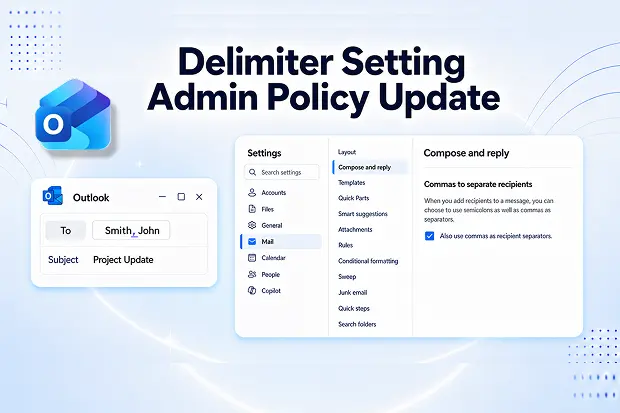
Typing email recipients should feel simple, but even small formatting rules can create real confusion. Microsoft is now giving administrators a smarter way to control how Outlook handles commas in recipient names, making everyday email writing more consistent and much less frustrating.
This update introduces a new Exchange Online admin policy that lets admins choose the default behavior for commas when people compose or reply to emails. It is a useful change for businesses that want cleaner address handling, fewer mistakes, and a more predictable Outlook experience across teams.
What This Outlook Update Changes
Microsoft is introducing a new Exchange Online setting that lets organizations decide whether Outlook should use commas to separate recipients by default when people write or reply to emails.
Key highlights
- A new Exchange Online admin policy will control the default behavior for “Use commas as recipient separators” in Outlook.
- The feature applies to Outlook on the web and the new Outlook for Windows when no personal override is already set.
- Users can still change the setting in their own Outlook experience unless a stricter policy is enforced.
Who In Your Organization Is Affected
This update mainly affects Exchange Online administrators and anyone using Outlook to compose or reply to messages in supported cloud environments.
It becomes especially relevant in organizations that frequently use directory naming formats such as “Last name, First name,” where comma behavior can easily create confusion.
Impacted roles and scenarios
- Exchange Online administrators managing Outlook on the web and the new Outlook for Windows.
- Users who compose or reply to emails in Outlook where no personal override has already been applied.
- Organizations that depend on consistent contact naming and address formatting across teams.
Try a Real Example
Bring the feature to life with a simple address test.
- Search for a contact saved in a “Last name, First name” format.
- Try adding that contact while composing a new email.
- Notice how comma behavior can change the experience and why this admin setting matters.
How The New Policy Works
Once available, the new admin setting allows Outlook behavior to start from a tenant wide default chosen by the organization. This gives IT teams more control without removing flexibility from individual users.
After the policy is set, users inherit that default experience. They can still toggle the setting in Outlook unless the organization chooses to manage it more tightly.
Behavior details
- Admins can turn the default comma separator behavior on or off for the entire tenant.
- Users will see the admin selected choice as their starting default where no user level override exists.
- The setting can still be changed in Outlook by users after the policy is applied.
- Existing tenant behavior stays as it is until an admin makes a change.
Where Users See This Setting
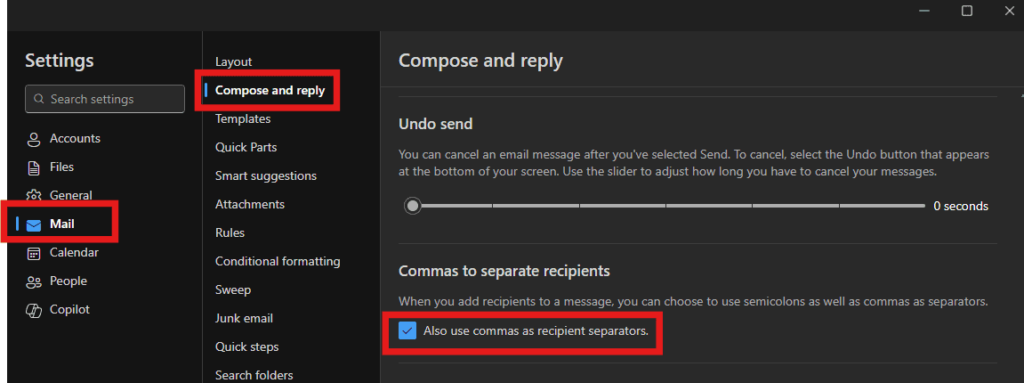
This admin setting appears inside Outlook settings under the compose and reply experience.
Outlook client setting
- Path: Settings > Mail > Compose and reply > “Commas to separate recipients”.
- Users can decide whether commas separate people in the recipient line or stay as part of a contact name.
Why This Matters For Admins
At first glance, this looks like a small Outlook change. In practice, it helps reduce uncertainty in one of the most common actions people perform every day, sending email.
For teams that work with formal contact naming conventions or shared directories, a consistent default can reduce mistakes and improve user confidence.
Practical benefits
- Better control over how recipient names are handled across supported Outlook experiences.
- Less confusion when commas appear inside names instead of acting as separators.
- Easier helpdesk support because everyone starts from a more consistent default.
- Greater flexibility because users can still adjust the setting when needed.
Getting Your Tenant Ready For This Update
No immediate action is required. The feature will roll out on Microsoft’s timeline, and current behavior will remain unchanged unless an administrator updates the policy.
Still, this is a good time to review internal naming standards and think about the experience that should become the default across the organization.
Preparation checklist
- Review how names are stored in the directory and address book.
- Decide whether commas should act as separators or remain part of names.
- Update relevant internal training or support documentation.
- Prepare a short user communication so the change feels familiar when it arrives.
How To Configure The Policy
When the rollout reaches the tenant, the setting can be configured through Exchange Online PowerShell. That gives administrators a direct way to set the organization wide default.
Microsoft references the Set-OrganizationConfig cmdlet for this type of organizational configuration in Exchange Online.
Configuration via PowerShell
- Connect to Exchange Online PowerShell using the required admin permissions.
- Set the new comma delimiter behavior at organization level, using the Microsoft provided pattern:
Set-OrganizationConfig -RecipientDelimeters $true
This enables commas as recipient delimiters by default. - To turn the behavior off and allow commas to be treated as part of contact names instead, run:
Set-OrganizationConfig -RecipientDelimeters $false - After you change the setting, verify that it applied correctly:
Get-OrganizationConfig | Format-List *Delimiter*
Test the result in Outlook on the web and the new Outlook for Windows before communicating the change broadly.
Official Microsoft Resources To Learn More
For technical guidance and feature tracking, the following Microsoft resources are the best places to start.
Useful Microsoft links
















