


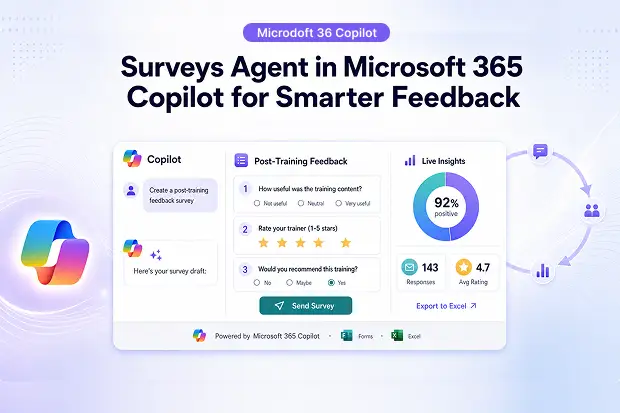
Are surveys slowing down work more than they should? Microsoft is trying to fix that with Surveys Agent in Microsoft 365 Copilot, a new AI-powered experience designed to help people create surveys, share them faster, track responses, and turn feedback into useful insights without the usual back-and-forth setup work.
For teams that regularly collect employee feedback, training responses, customer opinions, or internal business input, this update matters because it brings survey creation and analysis into a more natural, conversation-based workflow inside Microsoft 365 Copilot.
- What is Microsoft 365 Copilot Surveys Agent?
- Key Features That Make Survey Creation Effortless
- How to Access Surveys Agent in Microsoft 365 Copilot
- Step-by-Step: Creating Your First AI-Generated Survey
- Real-World Applications for Business Survey Tools
- Survey Data Analysis Made Simple with AI Insights
- Best Practices for Maximizing Survey Response Rates
What is Microsoft 365 Copilot Surveys Agent?
Surveys Agent is a Microsoft-built agent inside Microsoft 365 Copilot that helps users create, manage, and analyze surveys through simple prompts instead of building everything manually from scratch . It is positioned as a personal survey expert that can guide users from survey design to distribution planning and results analysis in one place.
That means a user can describe what they need in plain language, such as an employee satisfaction survey or a post-training feedback form, and the agent can generate a draft survey and help move the process forward quickly.
Your Feedback Shortcut
- Think about the last survey created manually.
- How much time went into writing questions, formatting the form, and following up for responses?
- That simple comparison makes it easier to see where AI-driven survey automation can save effort.
Key Features That Make Survey Creation Effortless
Microsoft highlights Surveys Agent as a tool that supports the full survey journey, not just question generation. The update is especially useful for teams looking for faster survey creation, easier feedback collection, and quicker analysis inside the Microsoft ecosystem.
- AI-powered survey generation from natural language prompts
- Recommendations for survey distribution channels and response strategies
- Response tracking and reminder support through Outlook workflows
- Built-in insights with options to export raw data and summaries to Excel
- Easier collaboration on survey results through shared Excel workbooks
These features make the update feel less like a basic form builder and more like an end-to-end survey assistant for modern workplaces.
How to Access Surveys Agent in Microsoft 365 Copilot
The agent is available to commercial customers worldwide who have a Microsoft 365 Copilot license.
Microsoft says users can access Surveys Agent by following the below steps:
- Sign in to Microsoft 365 Copilot with a work or school account
- Open Agent -> All agents
- Search for “Surveys” Agent and Install
- Once you install Surveys Agent, you will find it in the Agents area inside Copilot.
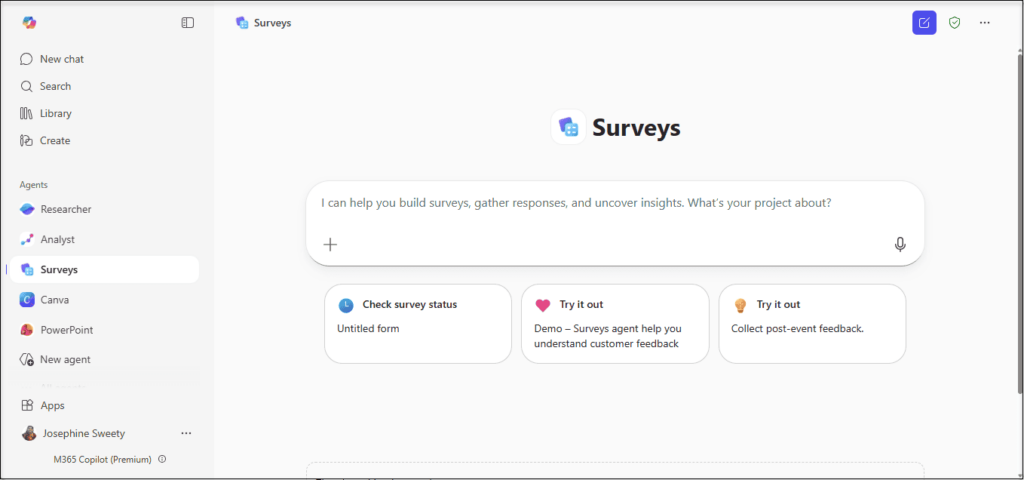
Also, Microsoft provides a direct access path through aka.ms/GetSurveysAgent.
Step-by-Step: Creating Your First AI-Generated Survey
The setup process is designed to feel conversational and simple, which is a big part of the appeal for busy teams that do not want to spend too much time learning another tool. Microsoft describes a workflow that starts with a prompt, moves into refinement, and then continues through sending and analysis.
- Open Surveys Agent from the Agents section in Microsoft 365 Copilot.
- Type a request such as creating an employee satisfaction survey or a post-training feedback survey.
- Review the generated draft and refine the questions if needed.
- Use the suggested distribution plan to choose how the survey should be sent.
- Track participation and review insights as responses come in.
This kind of guided flow reduces friction for users who want useful survey results without spending too much time on setup and follow-up.
Real-World Applications for Business Survey Tools
Microsoft’s examples show that Surveys Agent can support a wide range of use cases across HR, training, customer research, events, and internal operations . That flexibility is one reason this Microsoft Forms and Copilot update could appeal to both small teams and larger enterprises .
- Employee feedback and engagement surveys
- Training and learning evaluation forms
- Customer feedback and market research surveys
- Event follow-up and attendee experience forms
- Compliance-related or onboarding forms with region-specific needs
Survey Data Analysis Made Simple with AI Insights
One of the biggest pain points with surveys is what happens after responses start coming in. Microsoft says Surveys Agent helps here by monitoring response progress, surfacing insights, and letting users export both raw data and AI-generated summaries into Excel for further analysis.
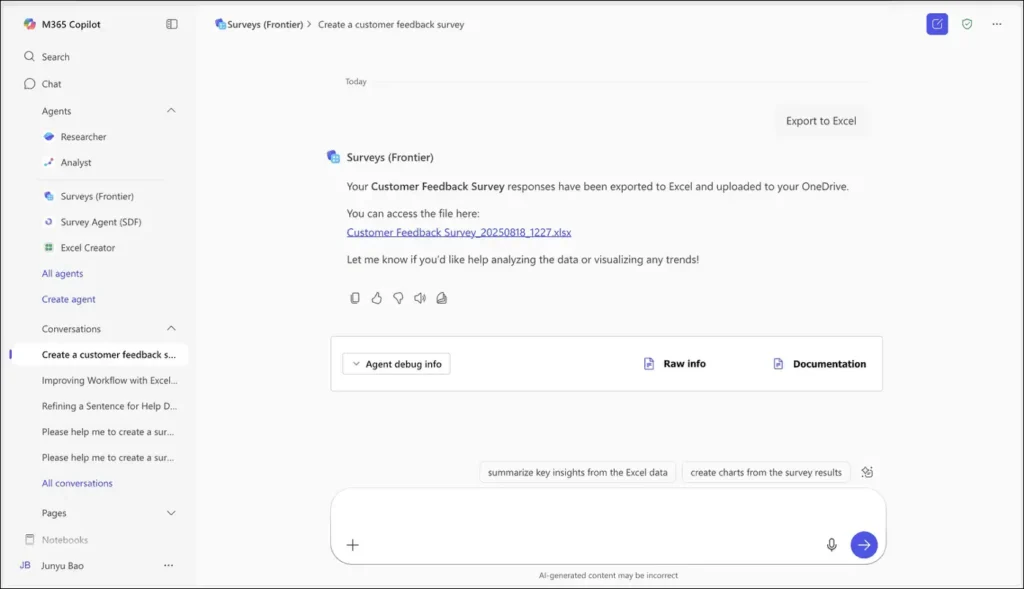
This matters because teams often lose time jumping between tools just to understand results. By keeping the process connected to Copilot and Excel, Microsoft is aiming to make survey analysis easier to act on and easier to share across teams .
Current Limitation to Consider
Multilingual survey setup still needs manual configuration via Microsoft Forms
Best Practices for Maximizing Survey Response Rates
Microsoft notes that Surveys Agent can recommend distribution approaches and support reminders, but response quality still depends on how thoughtfully the survey is introduced and managed. Good survey strategy and AI assistance work best together, not separately.
- Keep the survey purpose clear and easy to understand.
- Send surveys at a time when the audience is more likely to respond.
- Use reminders carefully so the survey stays visible without becoming annoying.
- Review early response trends and adjust outreach if participation is low.
These simple habits can make an AI-generated survey perform much better in real business settings.
Learn More About Surveys Agent
Here are the official Microsoft resources for deeper reading:

















 Migrate
 Manage
 Migrate Microsoft 365








