


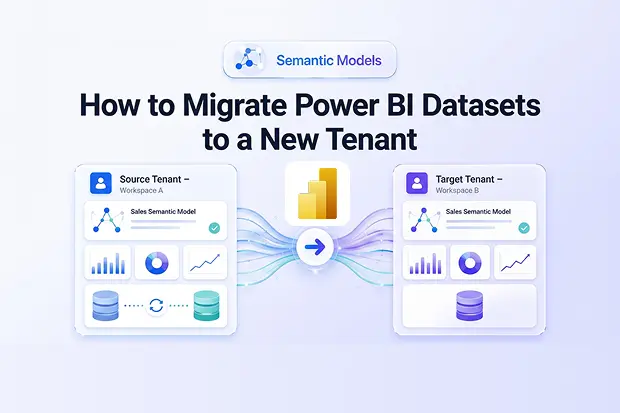
Power BI datasets, now called semantic models, underpin the reports and dashboards your business depends on. During tenant-to-tenant migration, they are also among the easiest assets to overlook.
That is because the failure is often not obvious at first.
A report may still open. A dashboard may still look normal. But behind the scenes, data source connections may be pointing to the wrong place; refresh schedules may be gone, credentials may no longer work, and artifact IDs may have changed. Everything looks fine until someone notices the data is stale, or a live connection stops responding.
This guide explains what actually happens to Power BI semantic models during tenant migration, what commonly breaks, and what you need to do to restore everything properly. It also covers the differences between Import mode and Direct Query, along with shared datasets, gateways, and refresh schedules. For the full Power BI tenant migration overview, see our Power BI cross-tenant migration guide.
- Datasets vs. Semantic Models: What Changed?
- What Breaks During a Power BI Dataset Tenant Migration?
- Import Mode vs. Direct Query: Why the Risk Is Different
- Shared Datasets: A Common Migration Complication
- Gateway Migration: What Moves and What Does Not
- How Apps4.Pro Handles Semantic Model Migration
- Post-Migration Checklist
- Get Started
- Frequently Asked Questions
Datasets vs. Semantic Models: What Changed?
In November 2023, Microsoft renamed datasets to semantic models in Power BI. This change was purely in terminology and did not introduce any service disruption, feature changes, or required actions for customers. The rename was intended to improve clarity, as “semantic model” more accurately describes this Power BI component.
In this article, both terms are used interchangeably, since many teams still refer to them as “datasets” in practice. Technically, they represent the same thing.
What Breaks During a Power BI Dataset Tenant Migration?
When a Power BI semantic model is moved from one tenant to another, several underlying dependencies change. That is where most post-migration issues begin.
GUIDs Change
Every Power BI artifact has a unique identifier, including workspaces, semantic models, reports, and dashboards. When content is migrated into a new tenant, new GUIDs are created.
That means anything that depends on the old IDs stops working. This usually affects:
- Power Automate flows tied to dataset refreshes
- Custom applications using the Power BI REST API
- Embedded reports that reference report IDs directly
This is one of the most common reasons automation breaks after migration, even when the content itself appears to have moved successfully.
Data Source Connections Break
Connection strings usually come across during migration, but the authentication context does not.
In other words, the semantic model may still point to the same SQL Server, SharePoint site, Blob Storage account, or Databricks environment, but the source tenant’s credentials, OAuth tokens, and service principal permissions no longer apply in the target tenant.
As a result, every data source connection needs to be re-authenticated after migration.
For tenant-specific data sources such as SharePoint Online and OneDrive, the issue often goes further than authentication. The URLs themselves may change, which means you may also need to update Power Query connection details, not just sign in again.
Refresh Schedules Disappear
Scheduled refresh is configured at the tenant level, so it does not move with the semantic model.
After migration, semantic models arrive without their original refresh schedules. If you have only a few models, recreating them is manageable. If you have dozens or hundreds with carefully staggered timings, this can quickly become a tedious and error-prone task.
Credential Bindings Are Lost
Power BI stores credentials separately from the semantic model definition. Those bindings are tied to the source tenant’s identity framework, so they do not carry over.
That means passwords, OAuth grants, service principal secrets, and other credentials all need to be re-entered or reconfigured in the target tenant before refresh and live connectivity can work again.
If you are planning a Power BI tenant migration, this is usually the point where teams realize the migration is not just about moving content. It is also about rebuilding trust and connectivity around that content.
Import Mode vs. Direct Query: Why the Risk Is Different
The storage mode of a semantic model has a big impact on what users experience after migration.
Import Mode
With Import mode, the data is already cached inside Power BI’s in-memory engine.
That means reports may still appear to work immediately after migration because they can continue showing the last imported snapshot of data. On the surface, this feels reassuring. In reality, it can be risky, because the problem is easy to miss. If credentials are broken and refresh schedules have not been recreated, users may be looking at stale data without realizing it.
Direct Query
With Direct Query, no data is stored in Power BI. Every interaction sends a live query back to the source system.
That makes post-migration issues visible much faster. If the connection string is wrong, the credentials are missing, or the gateway is not properly configured, the report fails right away. Users see the problem immediately because there is no cached data to fall back on.
Composite Models
Composite models combine Import and Direct Query behavior, so they inherit both types of risk.
Some visuals may continue working because they rely on imported data, while others fail because they depend on live queries. That mixed behavior can make troubleshooting more confusing if you are not expecting it.
Shared Datasets: A Common Migration Complication
Many organizations use shared semantic models so multiple reports can rely on the same central logic. It is a good practice for governance and consistency, but it adds another step during migration.
According to the original content, shared dataset references are not migrated as simple linked references. Instead, the semantic model is recreated in the target, and reports need to be rebound to the correct target model afterward. That rebinding can be done through the Power BI REST API or manually in the Power BI service.
In practical terms, this means you should inventory these relationships before migration. Know which reports depend on which shared semantic models. Otherwise, what looked like one migration step can turn into a post-migration scramble.
Gateway Migration: What Moves and What Does Not
Gateways are another area where teams often assume more will carry over than actually does.
The gateway server itself does not move. The software can stay where it is. But the gateway registration and its associated data source configurations are tied to the source tenant.
After migration, you typically need to:
- register the gateway in the target tenant, or re-register the existing installation
- recreate the data source connections on that gateway
- re-enter credentials
- reconnect the migrated semantic models to the correct target gateway setup
This part of the process is especially important for on-premises, where the gateway is the link between Power BI and internal data sources.
Apps4.Pro supports gateway mapping as part of the migration workflow – mapping source gateway data sources to their target equivalents so that semantic models land with the correct gateway references. For a deeper look at gateway-specific migration challenges, see our Power BI gateway migration guide.
How Apps4.Pro Handles Semantic Model Migration
Apps4.Pro Migration Manager is positioned as a way to reduce the manual work involved in moving Power BI workspace content between tenants. Based on the source content, it supports migration of reports, semantic models, dashboards, dataflows, permissions, and gateway mappings.
The process is described in five main steps:
Step 1 – Connect
Authenticate to both the source and target tenants. The tool requires Fabric Administrator access with admin consent in both environments. The content notes that global admin credentials are not stored.
Step 2 – Inventory
Generate a pre-migration inventory report covering workspaces, semantic models, reports, dashboards, gateways, and data source connections. This can be exported to Excel for planning and review.
Step 3 – Map
Map users, groups, workspaces, reports, datasets, and data sources from source to target. This step is also where gateway data sources can be aligned with their target equivalents.
Step 4 – Migrate
Run the migration by workspace, either individually or in bulk. Workspaces can be moved into new or existing target workspaces while preserving structure across reports, semantic models, dashboards, and dataflows.
Step 5 – Validate and Redirect
Export redirect information for data source ownership and re-authentication, so end users can complete any remaining steps in the target tenant.
For a step-by-step walkthrough of the full Apps4.Pro migration workflow, see the Power BI migration guide.
Post-Migration Checklist
A checklist works well here because readers looking at this topic usually want something practical; they can act on.
Immediate Checks
- Confirm all workspaces exist in the target tenant
- Verify workspace names and permissions
- Make sure semantic models appear in the correct workspace
- Validate report-to-semantic-model bindings, especially where shared models were used
Data Source Recovery
- Re-authenticate all data source credentials
- Verify gateway registration and data source setup
- Run a manual refresh for every semantic model to confirm connectivity
Refresh and Automation
- Recreate all scheduled refreshes
- Update Power Automate flows with new GUIDs
- Update embedded report links and API references
- Test Direct Query reports to confirm live connectivity
Ongoing Validation
- Compare report visuals against the source tenant
- Confirm row-level security still behaves correctly
- Monitor refresh failures closely during the first two weeks
Get Started
When semantic models break during Power BI tenant to tenant migration, the impact goes beyond the model itself. Dashboards, reports, embedded analytics, and scheduled reporting all depend on it.
That is why semantic model migration needs more than a simple content copy. It requires identity mapping, connection recovery, refresh reconstruction, and careful validation.
Apps4.Pro Migration Manager is presented here as a way to simplify that process by handling workspace content, permissions, gateway mapping, and data source remapping, so teams can spend less time on reconstruction and more time validating the result.

















 Migrate
 Manage
 Migrate Microsoft 365








