


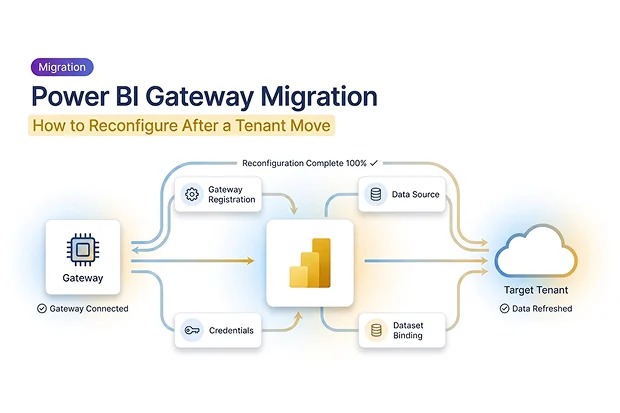
Many IT teams assume that when Power BI workspaces move to a new tenant, the gateways those workspaces depend on move too. They do not.
Gateway registrations, data source definitions, stored credentials, and dataset bindings are all tenant-bound. They remain in the source tenant even after your workspaces, reports, and semantic models have been migrated.
The gateway software installed on your server does not move. What changes is the tenant-side configuration: which gateway serves which datasets, which credentials authenticate connections, and which refresh schedules keep data current. After a tenant moves, all of that must be rebuilt in the target tenant.
This guide explains how to reconfigure Power BI gateways after a tenant-to-tenant migration, and where Apps4.Pro can reduce the manual effort by identifying gateway-dependent datasets and mapping source-to-target data source connections.
For the broader migration process, see our Power BI cross-tenant migration guide.
- Why Power BI Gateways Can’t Be Migrated
- What Happens to Gateway Connections After Migration
- Import vs DirectQuery: How Gateway Issues Show Up
- What Gateway Reconfiguration Involves
- Azure Relay and Network Considerations
- Gateway Reconfiguration Checklist
- Why Planning This Matters
- Get Started
- Frequently Asked Questions
Why Power BI Gateways Can’t Be Migrated
A Power BI on-premises data gateway has two distinct parts:
- The gateway service installed on a server you manage
- The registration and configuration stored in your Power BI tenant, including gateway objects, data sources, credentials, and permissions
In a tenant to tenant migration, the gateway server itself stays in place, but the tenant-side configuration does not carry over. That makes gateway migration a reconfiguration task, not a data transfer task.
What moves:
- Workspaces
- Reports
- Semantic models
- Dashboards
- RLS rules
What does not move:
- Gateway registrations
- Data source definitions
- Stored credentials
- Gateway-to-dataset bindings
What Happens to Gateway Connections After Migration
Once the content migration is complete:
- Workspaces, reports, and semantic models appear in the new tenant
- Any existing Import cache moves with them
- Gateway connections are broken because datasets still reference gateway IDs from the source tenant
- Import models stop refreshing
- DirectQuery models fail immediately when users interact with reports
Import vs DirectQuery: How Gateway Issues Show Up
| Aspect | Import Mode | DirectQuery |
|---|---|---|
| After migration | Reports show cached data, but refresh fails | Reports error immediately |
| Gateway’s role | Required for refresh | Required for every query |
| Risk pattern | Silent data staleness | Immediate, visible errors |
DirectQuery datasets are critical-path items because gateway issues affect them immediately. They usually break first, and users notice first, so they should be prioritized.
What Gateway Reconfiguration Involves
After a tenant move, restoring gateway functionality comes down to four tasks:
- Inventory the existing gateway setup
- Re-register gateways in the new tenant
- Recreate data sources and credentials
- Rebind migrated datasets to the new gateway data sources
To understand this entire process, start by reviewing your current gateway setup.
Step 1: Inventory the Existing Gateway Setup
Before changing anything, capture the current gateway landscape in the source tenant:
- Gateway names, owners, and cluster membership
- Data sources on each gateway
- Connection details and authentication methods
- Which semantic models use each data source
- Which reports depend on those semantic models
Your goal is to build a clear mapping like this:
Dataset → Gateway → Data Source → Connection Details
Apps4.Pro helps identify gateway-dependent datasets before migration, reducing manual analysis.
Step 2: Decide the Gateway Topology in the Target Tenant
A tenant migration is also a good opportunity to simplify your gateway architecture.
Ask:
- Can you consolidate gateways that serve the same purpose?
- Do you still need separate gateways for Dev, Test, and Prod?
- Are any existing gateways no longer in use?
Decide which gateway servers will be re-registered, whether new clusters are needed, and which legacy gateways can be retired.
Step 3: Re-register the Gateways
This is the most hands-on step because it requires access to the servers running the gateway software. Need the exact registration steps? See the Apps4.Pro Power BI migration support guide.
For each gateway server:
- Open the On-premises data gateway configuration tool
- Confirm the gateway is healthy in the source tenant
- Sign out of the source tenant within the gateway configuration tool
- Sign in using an account in the target tenant with Power BI Service Administrator or Fabric Administrator rights
- Choose Register a new gateway on this computer
- Register it using either the same name or a new naming convention
After registration, the gateway will appear under Manage gateways in the new tenant, but it will not yet contain any data sources.
Step 4: Recreate the Data Sources
Once the gateways are registered in the target tenant, recreate the data sources they need to serve.
In Manage gateways:
- Select the gateway
- Click Add data source
- Choose the same data source type used in the source tenant
- Enter the server, database, and connection details
- Set the privacy level
- Reapply any advanced settings, such as encrypted connections or timeout settings
Repeat this until every source-side data source has a matching target-side definition.
Step 5: Re-enter Credentials
Credentials do not migrate. They are tenant-scoped secrets and must be entered again into the target tenant.
For each data source:
- Re-enter passwords, keys, or client secrets
- Confirm the account still has access to the underlying source system
- Test the connection in the gateway management interface
Where possible, use service principals or managed identities instead of individual user credentials.
Step 6: Rebind Datasets to the New Gateway Data Sources
At this stage, the gateways and data sources exist in the target tenant, and the Power BI content has already been migrated. Now you need to reconnect the datasets.
For each migrated dataset or semantic model that previously depended on a gateway:
- Open its settings in the target tenant
- Go to Gateway connection
- Select the correct gateway
- Map each connection to the appropriate gateway data source
- Save and validate the configuration
This is often the most time-consuming step at scale.
Apps4.Pro helps here by identifying gateway-dependent datasets before migration and supporting source-to-target data source mapping, so administrators do not have to reconstruct those relationships manually.
Step 7: Recreate Refresh Schedules and Test Everything
Once bindings are in place, validate each model type carefully.
For Import models:
- Trigger a manual refresh
- Confirm it completes successfully
- Check the “Last refreshed” timestamp
- Validate key reports visually
For DirectQuery models:
- Open reports and interact with filters and visuals
- Confirm queries return without errors
- Watch for performance issues
For Composite models:
- Test both imported tables and DirectQuery tables separately
Also recreate any scheduled refreshes that existed in the source tenant.
For the first one to two weeks after migration, monitor:
- Gateway connection failures
- Scheduled refresh errors
- DirectQuery issues
- Gateway server resource usage
Azure Relay and Network Considerations
Power BI gateways use Azure Relay for outbound encrypted connectivity. When a gateway is re-registered, its Azure Relay metadata is updated for the target tenant.
Even if your Power BI-side configuration is correct, connectivity can still fail if the gateway server cannot reach the required Microsoft endpoints.
Validate that:
- Firewall rules still allow outbound traffic
- Proxy settings still work
- Required endpoints are reachable for the target tenant region
If the migration involved a regional change, coordinate with your network team to confirm that the correct outbound access is in place.
Gateway Reconfiguration Checklist
Before Migration
- Inventory all gateways and data sources
- Map datasets and reports to gateway-backed data sources
- Decide target gateway topology
- Prioritize DirectQuery dependencies
During Migration
- Migrate workspaces, reports, and semantic models
- Confirm content lands in the correct target workspaces
After Migration
- Re-register gateways in the target tenant
- Recreate data sources
- Re-enter and test credentials
- Rebind datasets to gateway data sources
- Recreate scheduled refreshes
- Test Import and DirectQuery behavior
- Monitor for issues during the first one to two weeks
For semantic model behavior during migration, including shared datasets and refresh schedules, see our Power BI dataset and semantic model migration guide.
Why Planning This Matters
If you migrate Power BI content without a gateway plan, you can end up with:
- DirectQuery reports that fail on every load
- Import models that stop refreshing
- No clear way to identify which datasets need attention first
Apps4.Pro does not replace your gateway administrators. It helps them work faster by identifying gateway-dependent datasets, supporting source-to-target data source mapping, and reducing the manual effort needed to restore working connections after migration.
Get Started
Migrating Power BI content with gateway dependencies?
Apps4.Pro helps you identify gateway-dependent datasets before migration and reconnect them faster afterward with source-to-target mapping support.


















 Migrate
 Manage
 Migrate Microsoft 365








