


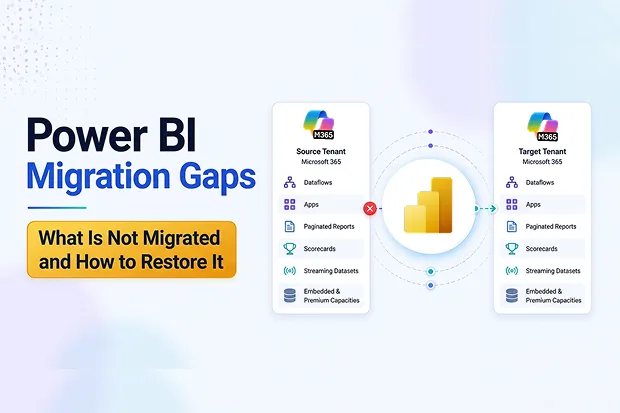
When you plan a Power BI tenant to tenant migration, it is natural to worry about what does not move automatically. Dataflows, Apps, paginated reports, scorecards and streaming datasets sit on that list along with embedded and premium capacities that keep analytics running.
This article walks you through each of those areas so you understand why they are not auto migrated and what you can practically do about them.
Auto-Migration Limitations and Practical Solutions
Power BI elements, such as dataflows, Apps, paginated reports, scorecards, streaming datasets, and embedded or premium capacities do not transfer automatically during tenant migrations. You will find each element explained below along with actionable steps to restore them in your new environment.
1. Power BI Dataflows: Why They Do Not Auto Migrate
During a Power BI tenant to tenant migration, datasets and workspaces can move with the right tooling, but dataflows typically stay in the source tenant. Dataflows depend on Power Query connections, gateways and storage that are tightly bound to the original environment.
If a migration engine tried to clone dataflows without context, you would likely face broken transformations, invalid credentials and failing refreshes. That is why any serious Power BI dataflow migration approach guides you to rebuild dataflows in the target tenant instead of treating them as simple files.
Action Plan: Rebuild Dataflows In The Target Tenant
By treating dataflow recreation as a structured task, you reduce guesswork and give yourself clear checkpoints.
Here is a step-by-step process for Power BI dataflow migration to minimize risks and ensure a smoother transition between tenants.
- Confirm which workspaces and dataflows are in scope for the first migration wave and freeze changes where possible.
- List each dataflow with owner, refresh schedule, upstream sources and dependencies to critical reports or datasets.
- Open every dataflow in the source tenant, capture the Power Query M logic and note parameters, gateways, credentials and any custom functions.
- Set up equivalent data gateways, data sources and credentials in the target tenant, aligned to your new security and networking model.
- Create matching workspaces in the target tenant, then recreate each dataflow using Power Query online by pasting and adjusting the M code and parameters.
- Run initial refreshes on the new dataflows, fix validation errors and compare row counts and key measures with the source tenant for parity.
- Once you are confident in the results, reconnect dependent datasets and reports to the new dataflows and monitor their scheduled refresh.
- Work in small waves so you limit risk, then decommission the old dataflows only after you and your business stakeholders are satisfied with the new setup.
Dataflow Dependency Deep Dive
Before you move anything, you can run a quick self-assessment.
- Take your top ten business critical reports and mark which ones rely on dataflows.
- Tag each dependency as high, medium or low risk based on impact if it breaks for a day.
- Share that simple list with your team so everyone understands which dataflows need extra testing.
2. Embedded And Premium Capacity: Migration Basics
If you use Power BI embedded or premium capacities, your migration touches more than workspaces and reports. Capacity identifiers, regions and possibly Fabric capacity options will change in the new tenant, which affects cost, performance and governance.
This is where Power BI embedded migration and Power BI premium migration differ from simple content migration. You need a plan for capacities that covers architecture, licensing and the coexistence period where workloads may run in both tenants.
What Changes With Embedded And Premium
As you plan your Power BI capacity migration, it is important to be aware of several key factors that can significantly impact the process and its outcome.
- Capacity assignment will change, so you need to rebind workspaces to new embedded or premium capacities.
- Regions and Fabric options may shift, giving you a chance to consolidate or move closer to your users.
- Licensing mixes across Premium Per User, Premium Per Capacity and Fabric SKUs needs a fresh review.
- Service principals and APIs used by embedded apps must be validated against the new tenant and capacities.
Thinking through these items early helps you avoid downtime and surprise license bills.
Premium Cost Modelling Sprint
You can bring finance and BI leaders together for a focused working session.
- Develop a model for the next 12 months covering the three options – Premium Per User, Premium Per Capacity and Fabric.
- Include the cost of running both source and target capacities during coexistence.
- Agree guidelines for when a user gets PPU access versus when a workspace sits on capacity.
Detailed Checklist For Power BI Capacity Migration
Treating Power BI capacity migration as its own workstream makes decisions clearer and trade-offs more transparent. Instead of moving workspaces ad hoc, you can follow a structured approach.
Consider using this framework.
- Map each workspace to its current capacity and label it by criticality and owner.
- Design the target capacity layout, including region, SKU and workload grouping.
- Plan migration waves for reassigning workspaces, starting with lower risk ones.
- Communicate cutover windows to workspace owners and application teams so they can prepare.
- After each wave, monitor performance and utilization and adjust capacities where needed.
If you also adopt Fabric, extend this checklist to map which workloads move to Fabric capacities and experiences.
3. Paginated Reports: Why They Require Manual Migration
If your organization relies on paginated reports, you would already know how important layout and formatting are. Power BI paginated report migration is challenging because these reports are built on an SQL Server Reporting Services(SSRS) based architecture with Report Definition Language(RDL) definitions and precise page settings.
Those elements are not handled by standard dataset migration flows and can easily break if moved without care. That is why migration tools generally do not auto migrate paginated reports and expect you to manage them manually.
How To Move Paginated Reports Safely
You can follow a clear pattern for Power BI paginated report migration so that nothing is left to chance.
- Inventory all paginated reports, including owners, usage frequency and data sources.
- Export RDL files or pull them from your source control system.
- Configure matching data sources and credentials in the target tenant.
- Upload and republish each paginated report, then test the main export formats you rely on.
- Run user validation sessions to confirm that pagination, totals and layouts still meet expectations.
This approach gives you a practical audit trail showing that each paginated report works after migration.
4. Apps, Scorecards And Streaming Datasets In Migrations
Apps, scorecards and streaming datasets often feel like edge cases, yet they can drive a lot of daily value. They depend on audience targeting, live feeds and external systems that are specific to your tenant and environment.
Because of this, automated tools cannot safely migrate them in a generic way. You usually get better results by combining structured manual steps with clear communication to business owners, whether you plan a standard tenant move or a Power BI embedded migration scenario.
Why They Must Be Recreated
Apps
Apps act as curated experiences that package reports, dashboards and navigation for defined audiences. In a new tenant, audience lists, permissions and workspace bindings change, so the App structure must be recreated and republished.
You can make this smoother by following a simple approach.
- Capture the current App layout, including sections, featured reports and navigation order.
- Map existing security groups to new Entra ID groups in the target tenant.
- Rebuild Apps in the new tenant and run a pilot with a small group of users before wider rollout.
Scorecards And Streaming Datasets
Scorecards and streaming datasets both rely on live data connections that are sensitive to configuration changes. Power Bi Migration tools do not have enough context about your environment to safely rebind them automatically.
For scorecards, you can:
- Document metric definitions, including owners, thresholds and linked datasets.
- Recreate scorecards in the target tenant, align them to the new datasets and reset alert rules.
For streaming datasets, you can:
- Recreate dataset endpoints and connection strings in the new tenant.
- Update producers such as IoT devices, applications or pipelines so they send data to the new endpoints.
How Apps4.Pro Handles These “Not Migrated” Power BI Artifacts
Most general Power BI tenant to tenant migration articles focus on datasets, reports and workspaces. In practice, you have seen that dataflows, paginated reports, Apps, scorecards and streaming datasets also need explicit attention, along with embedded and premium capacities.
These specific artifacts cannot be migrated automatically in Apps4.Pro today due to current Microsoft API limitations and gaps in what the platform exposes for third party tools. Hence this article is designed to focus on these left out elements and show you practical ways to tackle them alongside your core migration.
Additional Resources to Enrich Your Apps4.Pro Journey
- To understand the complete tenant migration journey, you can start with the Microsoft Power BI Tenant to Tenant Migration Guide, which explains baseline capabilities.
- You can review our article “How to Migrate Power BI Datasets (Semantic Models) to a New Tenant”, which becomes the backbone for your Power BI dataflow migration and Power BI capacity migration strategy.
- For a full overview of the core Power BI tenant to tenant migration process, see our main article on “Simplify Power BI Tenant-to-Tenant Migration with Apps4.Pro”.
FAQs: Power BI Migration Gaps and Solutions
Unlock Safer Power BI Tenant Migration
Streamline Power BI dataflow migration, Power BI embedded migration and Power BI premium migration with automated, tenant aware tooling from Apps4.Pro.


















 Migrate
 Manage
 Migrate Microsoft 365








