


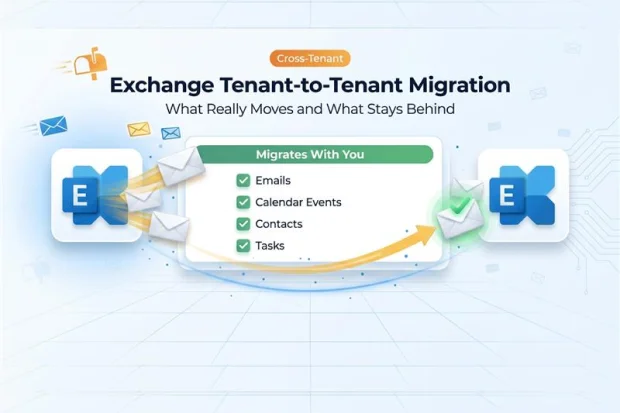
Your Microsoft 365 Exchange mailbox holds essential day-to-day emails, calendar invites, contacts, and tasks. Migrating it preserves your work history and context, allowing a smooth transition to new tenants and cloud features while maintaining your routine and compliance.
Planning an Exchange Online tenant to tenant migration can feel overwhelming at first. When you clearly understand what gets migrated in an Exchange tenant to tenant Migration moves, you get back control and reduce last minute surprises for everyone involved.
This article walks through the Exchange Online Mailbox Migration Scope in plain language, so you can quickly see what is covered and what needs extra planning.
- Start Your Migration Right: Know “What Migrates” First
- What Moves in Exchange Tenant-to-Tenant Migration
- What Is Left Behind in Exchange Tenant-to-Tenant Migration
- Definitive Exchange Migration Scope Table
- Streamline Exchange tenant-to-tenant Migration With Apps4.Pro
- FAQs: Exchange Tenant-To-Tenant Migration Scope
Start Your Migration Right: Know “What Migrates” First
Before you decide on tools, endpoints or cutover dates, you need to be clear on your migration scope. Scope is not only “how many mailboxes,” it is “which components are in and which are out.”
When you understand what gets migrated from Exchange Online and where the gaps are, you can:
- Set realistic expectations with your business stakeholders
- Design workarounds for items that do not move automatically
- Avoid rework and escalations after users Go-Live on the new tenant
Let’s thoroughly review which elements are and which are not migrated during an Exchange tenant to tenant Migration.
What Moves in Exchange Tenant-to-Tenant Migration
In a Microsoft cross-tenant mailbox migration, the core workloads you use every day and most of what your users see in Outlook are included.
At a high level, the Exchange Online Mailbox Migration Scope includes:
- User-visible mailbox content like mail, contacts, calendar, tasks and notes
- Core mailbox folders and archives
- Server-side rules and common mailbox permissions
For an overall picture of how Apps4.Pro automates Mailbox cross-tenant migration end to end, you can review the article on Tenant-to-Tenant Exchange Online Mailbox Migration Overview.
Mailbox Folders And Items
Your standard folders and custom folders come across with their content and structure intact which includes:
- Inbox, Drafts, Sent Items and Deleted Items
- Junk Email and Recoverable Items
- User-created folders and nested subfolders
Archive Mailboxes
If you rely on in-place archives or online archive mailboxes, those move together with the primary mailbox.
The archive stays associated to the same user and preserves:
- Folder hierarchy
- Stored messages and attachments
This matters a lot if your organization keeps longer term history in archives, whether for regulatory reasons or simply to keep primary mailboxes manageable.
Rules, Permissions And Delegation
Rules and permissions often shape how mail is processed and who can work together. If you ignore them, you can end up with confused users and lost productivity.
Server-Side Rules
Server-side rules live and execute on Microsoft Exchange servers rather than in the Outlook client. These rules are in scope for cross-tenant mailbox migration and are supported.
With proper user mappings, here is what you can expect:
- Conditions and actions remain intact
- Rules continue to run in the target tenant
- Users do not have to turn them back on manually
This is a key part of Exchange Online Mailbox Migration Scope because it keeps existing mail routing behavior consistent after cutover.
Permissions And Delegates
Mailbox permissions are also supported when all the related mailboxes are part of the migration set.
Typically preserves:
- Full access, send-as and send-on-behalf rights when source and target objects are mapped properly
- Folder-level permissions such as reviewer, editor and owner
- Delegate relationships where both the delegator and delegate are migrated
It’s still important to verify essential variants like executive assistant and shared mailbox access during your post-migration checks.
Calendars, Contacts, Tasks And Notes
Calendar, contacts and tasks are the everyday tools that keep people organized. If these do not migrate cleanly, your helpdesk will hear about it quickly.
Calendar Data
Calendar content is within scope and the core calendar items themselves make the move during Exchange cross-tenant migration.
This includes:
- Meetings and appointments
- Recurring series
- Calendar attachments
Contacts, Tasks And Notes
These personal information items are also supported and move with the mailbox that include:
- Contacts and contact groups
- Tasks, to-do items and reminders
- Notes stored in the mailbox
From a user perspective, this means their “people and plans” come across with them, so they do not need to rebuild contact lists or task boards from scratch.
Public Folders And Shared Resources
If your environment has business processes that depend on public folders, you need to know where they fit into your migration approach.
Native cross-tenant mailbox migration focuses on user mailboxes, whereas public folders need a separate batch-based migration model and careful planning.
Well-run migration projects handle public folders as their own scope including:
- Parent and subfolder structure
- Public folder items
- Folder-level permissions and mail-enablement
For detailed information regarding coverage, please refer to the Apps4.Pro Mailbox Migration Scope page for clarification on what is included and excluded.
What Is Left Behind in Exchange Tenant-to-Tenant Migration
The following section outlines key items that are not part of migration scope in an Exchange between office 365 tenants migration.
Default Retention Tags And Policies: Retention and archive tags are configuration objects, not mailbox content, so they do not move with the mailbox and must be recreated and reassigned in the target tenant.
Client-Side Rules depend on the Outlook profile and do not migrate, which means personal automations stop working until users export and recreate the rules.
Transport Rules And Organization-Level Mail Flow: Transport rules are tenant-level mail flow policies and are not part of mailbox moves. So, they need to be documented and rebuilt manually or via script after migration.
Meeting Requests, Responses And Hidden Mail: Meeting requests, responses and some hidden or system items do not fully migrate, so historical accept or decline status and custom flags or tracking data used by add-ins may be incomplete even though the calendar entries themselves are present.
Attachment Size Limits: Cross-tenant mailbox migration respects message size limits, so items larger than the configured limit (often around 36 MB by default, higher if tuned) are skipped unless you adjust those limits before migration via PowerShell cmdlets.
Use below script to set the Size limit to be 150 MB for all user mailboxes
Get-Mailbox -RecipientTypeDetails UserMailbox | Set-Mailbox -MaxSendSize 150MB -MaxReceiveSize 150MB OneDrive-Linked Attachments: OneDrive or SharePoint “attachments” in email are usually links that continue to point to the source tenant, so without a coordinated OneDrive or SharePoint migration and link strategy, many of these links can break.
This is one of the reasons many Exchange-only projects eventually broaden into wider Microsoft 365 migrations. Kindly evaluate Apps4.Pro Migration Manager, which facilitates the migration of various M365 workloads, including Microsoft Teams, SharePoint, Exchange, Planner, OneDrive, and more.
Definitive Exchange Migration Scope Table
You can use the table below as your single source of truth for Exchange Online Mailbox Migration Scope when you plan your tenant to tenant moves.
| Item | Status | What You Can Expect |
|---|---|---|
| Inbox, Drafts, Sent Items | ✅ | All visible messages and attachments migrate. |
| Deleted Items & Recoverable Items | ✅ | Deleted and soft-deleted content preserved per policy. |
| Junk Email | ✅ | Junk folder content migrates if included in scope. |
| Custom Folders | ✅ | Folder hierarchy and contents are maintained. |
| Server-side mailbox rules | ✅ | Migrate and execute in target tenant without recreation. |
| Mailbox access permissions | ✅ | Full access permissions preserved when properly scoped. |
| Contacts | ✅ | Personal contacts and contact lists move with mailbox. |
| Calendars | ✅ | Meetings, appointments and attachments migrate. |
| Tasks | ✅ | Tasks and reminders migrate as part of mailbox data. |
| Notes | ✅ | Mailbox-stored notes migrate with user content. |
| Public folders (with specific approach) | ✅ | Structure, items and permissions can migrate via dedicated public folder migration. |
| Archive mailbox | ✅ | Online archive content moves with primary mailbox. |
| Default retention tags | ❌ | Retention policies must be recreated in target tenant. |
| OneDrive/SharePoint-linked attachments | ❌ | Links still point to source tenant unless files are separately migrated. |
| Meeting requests/responses metadata | ❌ | Historical responses and some system items do not fully migrate. |
| Hidden or client-only messages | ❌ | Client-hidden items and local artifacts stay behind. |
| Client-side rules | ❌ | Outlook-only rules must be manually recreated. |
| Transport rules (mail flow rules) | ❌ | Org-level rules require manual rebuild in target. |
| Calendar meeting links | ⚠ | Links often reference source tenant; meetings may need to be re-sent. |
| Attachment size | ⚠ | Approx. 36 MB by default; can be increased toward 150 MB with configuration and scripts. |
Streamline Exchange tenant-to-tenant Migration With Apps4.Pro
If planning Exchange tenant to tenant migration feels heavy, Apps4.Pro is designed to take a lot of that weight off. The Mailbox migration tool focuses on seamless Exchange Online data Migration so you can control what moves, when it moves and how cleanly it lands.
You can use Apps4.Pro to:
- Migrate user, shared, archive and group mailboxes between tenants
- Include emails, calendars, contacts, tasks, rules and folder permissions in a single flow
- Apply selective scope so only chosen mailbox data moves at each stage
This gives a clear path for what gets migrated in an Exchange tenant migration, instead of juggling scripts and manual steps. It also means you can line up your migration waves with the batches already designed for your project.
When it is time to try this in a real environment, it helps to start small.
- Open the Exchange Online Product page and seek for a trial version.
- In the tool, connect a test source tenant and target tenant
- Run a pilot that mirrors your real Exchange tenant to tenant Migration scope, then check the reporting and validation views
This kind of hands-on trial shows how Apps4.Pro behaves with real mailboxes and gives confidence that your plan for which items are migrated during an Exchange tenant to tenant Migration will hold up in production.
For detailed prerequisites and step-by-step instructions, please refer the Microsoft Exchange Mailbox Tenant to Tenant Migration Guide.

















 Migrate
 Manage
 Migrate Microsoft 365








