


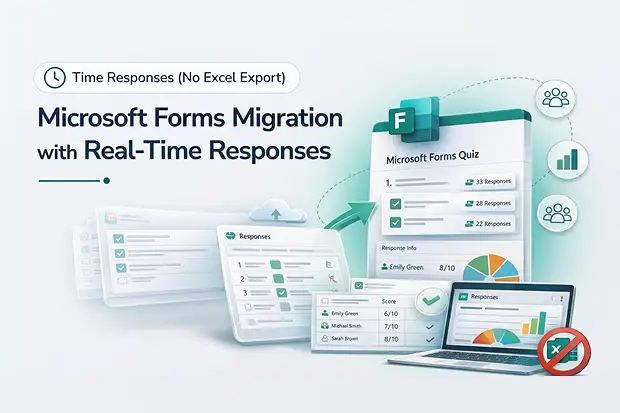
When organizations move between Microsoft 365 tenants: whether through a merger, acquisition, or tenant consolidation; Microsoft Forms is one of the most overlooked workloads. Forms and quizzes accumulate months or years of response data that employees rely on for decision-making, training assessments, and compliance records. Losing that data during a tenant to tenant migration isn’t just inconvenient, it breaks workflows.
Apps4.Pro Migration Manager is the first tool to migrate Microsoft Forms responses as live, interactive data within the Forms app itself, not as static Excel exports. Surveys, quizzes, and polls arrive in the target tenant fully functional, with response summaries, individual response views, and analytics intact.
This post explains how real-time form response migration works, how it compares to the old Excel export method, and what happens with quiz scores during the process. For a complete walkthrough of how all Microsoft 365 workloads including Microsoft Forms – fit together during a tenant move, see our Microsoft 365 tenant-to-tenant migration guide.
Why Microsoft Forms Responses Matter During Migration
Microsoft Forms isn’t just a survey builder. Organizations use it for:
- Employee engagement surveys with months of trend data in response summaries
- Quizzes and assessments where scores determine training completion or certification status
- Customer feedback forms tied to ongoing analysis in Excel or Power BI
- Compliance questionnaires where form responses serve as audit evidence
When a tenant to tenant migration strips responses from forms or flattens them into Excel files, every one of these workflows breaks. Users can no longer view response summaries inside the Microsoft Forms app, filter by respondent, or add migrated forms to live presentations with real-time response tracking.
The core problem: Microsoft provides no native tool to migrate Forms between tenants. There is no PowerShell cmdlet, no admin center option, and no Graph API endpoint purpose-built for Microsoft Forms migration. This leaves IT teams either rebuilding forms manually in the target tenant (losing all form responses) or relying on third-party migration tools and until recently, even those tools could only export responses as Excel files.
What Gets Migrated in a Complete Microsoft Forms Migration
Apps4.Pro migrates both flavors of Microsoft Forms, standard forms and quizzes at both user level and group level. Here’s the complete scope:
- Form and quiz structure – all questions, branching logic, sections, and page breaks
- Settings – response collection options, notification preferences, response receipts
- Themes – visual customizations applied to the form
- Collaboration permissions – co-authoring access granted to other users or groups
- Multilingual settings – translated versions of the form for multi-language deployments
- Question attachments – images, videos, and files embedded by the form creator within questions or descriptions
- Form responses – migrated as live, interactive data inside the Microsoft Forms app (not as Excel exports), with response summaries, individual submissions, and analytics intact in the target tenant
- Response attachments – files uploaded by respondents through File Upload questions, migrated and linked inline to each form response
The migration handles both personal forms (stored in a user’s Microsoft Forms account) and group forms (associated with a Microsoft 365 Group). This distinction is critical during tenant to tenant migrations where group structures may differ between source and target – group forms should only be migrated after the corresponding Microsoft 365 Group has been recreated in the target tenant.
Old Method vs. New Method: How Form Responses Are Migrated
The difference between exporting responses to Excel and migrating them as real-time data is fundamental, it determines whether your migrated Microsoft Forms are functional or just archived.
| Capability | Old Method (Excel Export) | New Method (Real-Time Response Migration) |
|---|---|---|
| Where responses appear | As an Excel file attached to the form owner’s account | Inside the Microsoft Forms app, linked to the form |
| Response summary view | ❌ Not available – must open Excel manually | ✅ Full summary view with charts, per-question breakdowns |
| Individual response drill-down | ❌ Requires filtering rows in Excel | ✅ Click any respondent to see their full submission |
| Live presentation integration | ❌ Cannot embed Excel into a live presentation | ✅ Add form to PowerPoint or Teams with real-time response feed |
| Export to Excel from target | ❌ Already in Excel – no further analysis pathway | ✅ Export anytime from the Forms app for deeper analysis |
| Quiz score visibility | ❌ Scores flattened into spreadsheet columns | ✅ Scores appear per-respondent within Forms, with grading intact |
| Response attachments | Detached from form – stored separately | Migrated and linked to the form response inline |
| User experience in target tenant | Disjointed – users must locate the Excel file manually | Identical to source – open the form, click Responses tab |
The new method preserves the full form response architecture in the target Microsoft 365 tenant. Users open their migrated form, click the Responses tab, and see exactly what they saw in the source tenant – summary charts, individual responses, and export options.
Review summary of the Forms’ responses for each question
Source
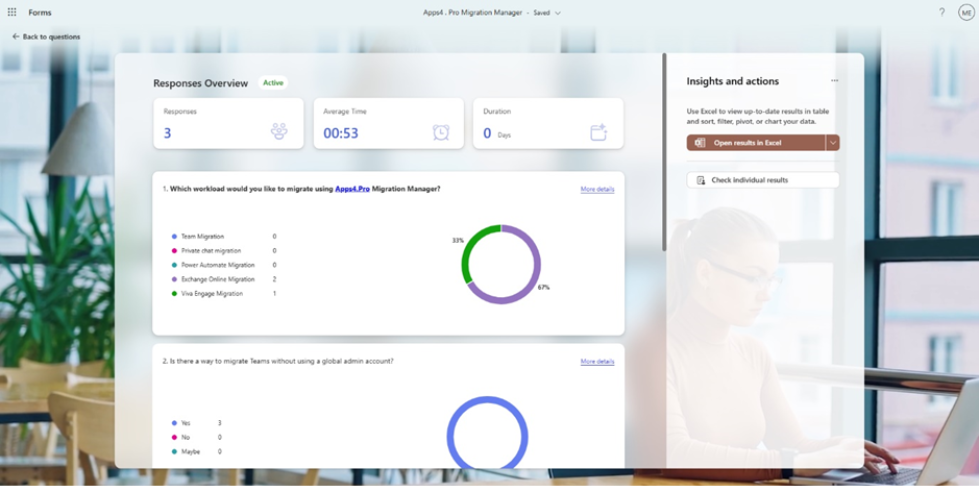
Target
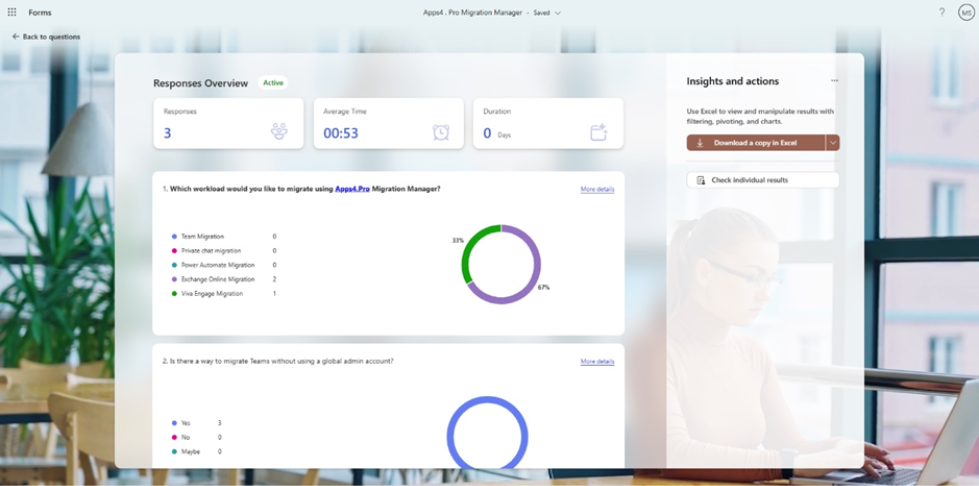
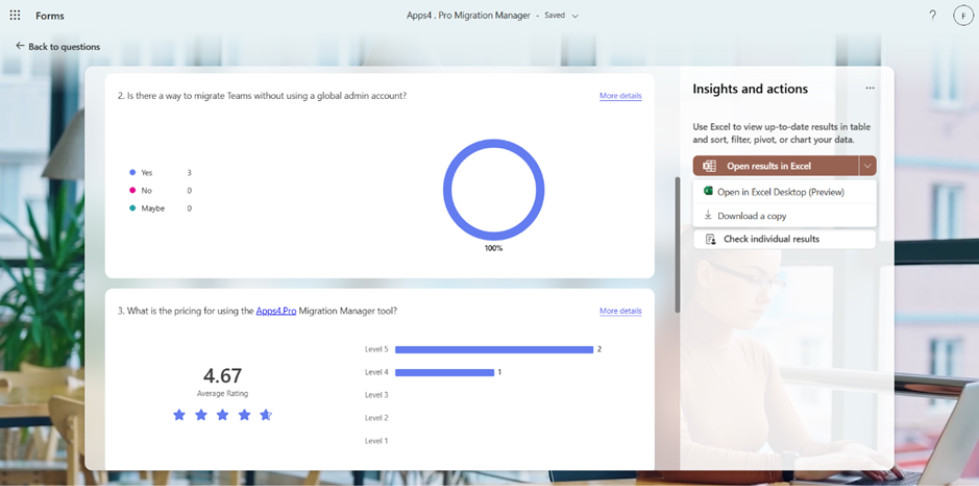
Open in Excel to view an editable spreadsheet
Source

Target
Ready to see this in action? Start your free 15-day trial – no credit card required.
Quiz Response Migration: Are Scores Preserved?
This is one of the most common questions from organizations running training programs or certification workflows through Microsoft Forms quizzes.
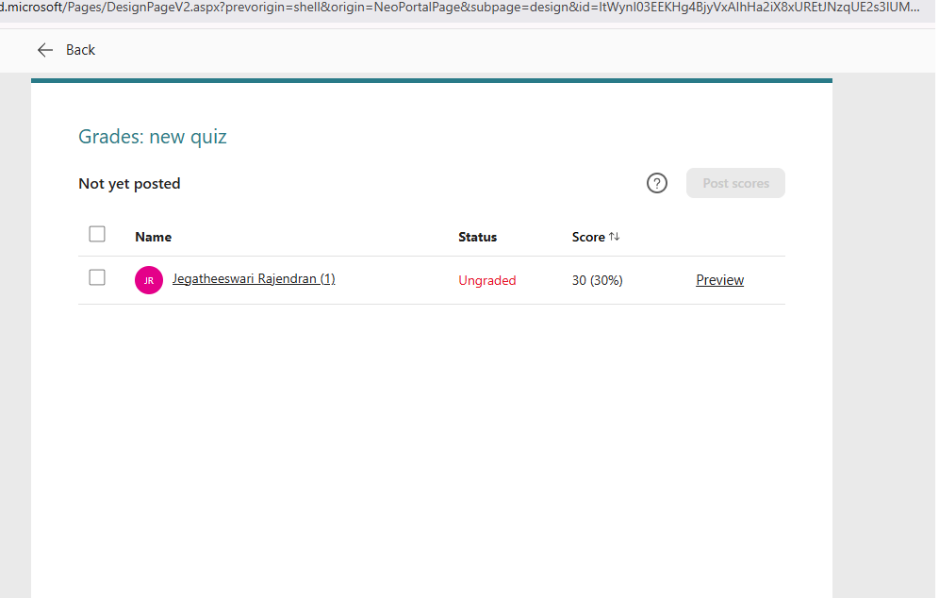
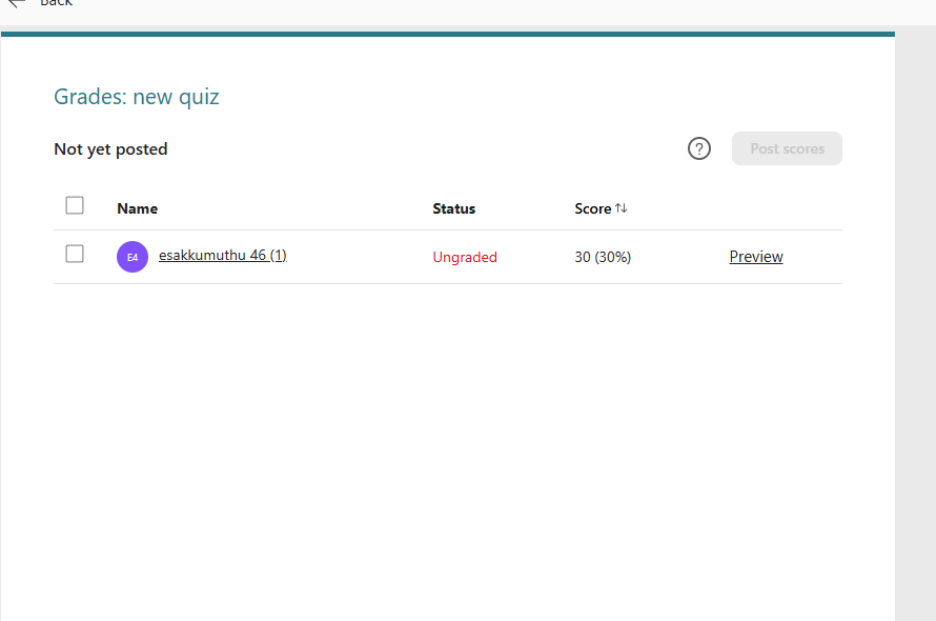
Yes, quiz scores are preserved as real-time data in the target tenant.
When Apps4.Pro migrates a quiz with the real-time response method, the following quiz-specific elements carry over:
- Point values per question. Each question’s assigned point value transfers to the target form, so the scoring structure remains intact.
- Individual respondent scores. Each quiz taker’s total score and per-question point awards appear in the target tenant’s Responses tab – not as a flat number in a spreadsheet, but as interactive data you can review respondent by respondent.
- Auto-graded vs. manually graded questions. Questions that Forms scored automatically (like multiple-choice) keep their correct/incorrect marks. Questions that a person reviewed and scored by hand (like essay responses or partial-credit answers) keep the exact points the grader assigned.
- Show results automatically settings. If the source quiz was configured to show results to respondents immediately after submission, that setting migrates along with the quiz configuration.
This matters for compliance-sensitive scenarios – training completion records, certification assessments, and onboarding quizzes – where the score data must survive the tenant to tenant migration as a verifiable record, not a disconnected spreadsheet.
Source:
Target :
Common Microsoft Forms Migration Challenges
Even with the right tool, Forms migration has nuances that IT teams should plan for:
- Group forms with broken group mapping. If a Microsoft 365 Group in the source tenant doesn’t have a corresponding group in the target, group-owned forms will fail. Verify group mapping before starting Forms migration waves.
- Forms with branching logic. Complex branching where question visibility depends on prior answers, must be validated post-migration. The branching structure migrates, but edge cases with deeply nested logic paths should be tested manually.
- High-response-volume forms. Forms with thousands of responses take longer to migrate than forms with dozens. Identify these during inventory and schedule them in dedicated migration windows rather than batching with smaller forms.
- Anonymous responses. Microsoft Forms allows anonymous survey collection. These form responses migrate successfully, but since no respondent identity is attached, they cannot be re-mapped to target tenant identities. They carry over as anonymous in the target, which is the expected behavior.
- Forms linked to Power Automate flows. If a form triggers a Power Automate flow in the source tenant, that flow connection breaks after migration. Flows must be manually recreated or updated to point to the migrated form in the target Microsoft 365 tenant.
Apps4.Pro addresses these challenges through automated mapping validation and pre-migration inventory reports. Here’s how the full process works.
How the Migration Process Works
Apps4.Pro keeps the Microsoft Forms migration workflow straightforward – no scripts, no PowerShell, no manual rebuilding. Used by over 15,000 organizations worldwide, the platform handles Forms migration in four steps:
- Connect source and target tenants. Authenticate both Microsoft 365 tenants via admin consent. Apps4.Pro uses OAuth-based authentication – no credentials are stored.
- Run pre-migration inventory. Generate a report showing all user and group forms in the source tenant, including response counts and attachment sizes. This helps IT teams scope the Forms migration and identify forms with high form response volumes that may need priority handling.
- Execute migration. Select users or groups, map source identities to target identities, and start the migration. Form responses are recreated as live data in the target tenant’s Microsoft Forms app, not exported to Excel. A real-time dashboard provides full visibility into progress, and migrations can be paused or resumed at any time.
- Validate in target. Open migrated forms in the target tenant, verify response summaries match source, confirm quiz scores are intact, and check that attachments are accessible. Apps4.Pro generates detailed accuracy reports and audit-ready logs for every migrated form. For detailed validation steps and post-migration troubleshooting, see our Microsoft Forms migration setup guide.
For a step-by-step walkthrough with screenshots, see our how-to guide for migrating Microsoft Forms.
How Microsoft Forms Migration Fits Into a Broader Tenant Move
Microsoft Forms is rarely migrated in isolation. Most tenant to tenant migrations involve SharePoint, Exchange, Teams, and other workloads alongside Forms. The sequences:
- Group forms should be migrated after the Microsoft 365 Group structure is recreated in the target tenant
- User-level forms should align with the same migration wave as the user’s other workloads to minimize confusion
- Forms linked to Power Automate or Power Apps should be flagged during discovery so downstream automations can be rebuilt post-migration
Get Started
Apps4.Pro Migration Manager handles Microsoft Forms migration including real-time response migration as part of a unified Microsoft 365 tenant to tenant migration platform. No scripting, no manual form rebuilding, no Excel workarounds.
👉 Start your free 15-day trial – no credit card required. Free POC included with 24/7 chat and email support.

















 Migrate
 Manage
 Migrate Microsoft 365








