


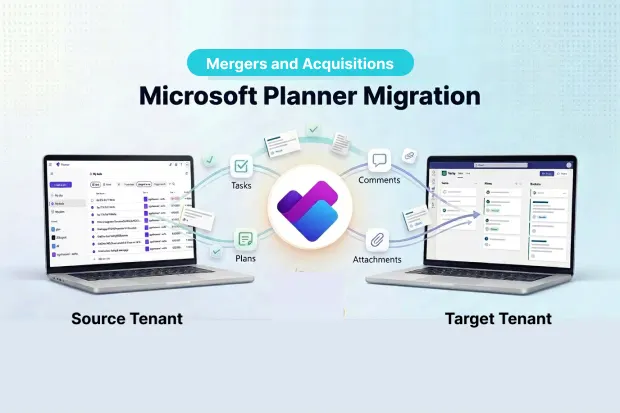
Mergers and acquisitions create the most time-sensitive scenario for Microsoft 365 tenant migration. And Microsoft Planner is one of the workloads most likely to be forgotten until it’s too late.
While IT teams prioritize Exchange mailboxes, SharePoint sites, and Teams channels, Planner boards carrying months of active project work sit quietly in the source tenant, unaccounted for.
The problem isn’t visibility, it’s that Microsoft provides no native tool to migrate Planner between tenants. No PowerShell cmdlet, no admin center option, no cross-tenant migration feature. When the Transition Service Agreement expires and the source tenant is decommissioned, every plan – tasks, comments, attachments, all of it – is permanently lost.
Planner data is at risk from day one. The moment the deal closes, the TSA clock starts.
This guide covers how Microsoft Planner migration works during M&A – risks to catch early, how Planner fits into the workload sequence, and what to validate before cutover. For Planner migration mechanics outside M&A, see our complete guide to migrating Microsoft Planner between tenants.
- Why Mergers and Acquisitions Are Different from Routine Migration
- The M&A Migration Timeline: Where Planner Fits
- M&A Workload Inventory: Core Workloads
- Planner-Specific Migration Risks in M&A
- Why Microsoft Has No Native Planner Migration Tool
- How Apps4.Pro Handles Planner Migration in M&A Scenarios
- Pre-Migration Checklist for M&A Planner Migration
- Discovery
- Environment Preparation
- Migration Execution
- Post-Migration Validation
- Get Started
- Frequently Asked Questions
Why Mergers and Acquisitions Are Different from Routine Migration
A standard Microsoft 365 tenant consolidation can take months of careful planning. An M&A integration rarely has that luxury. The difference comes down to one document: the Transition Service Agreement.
Transition Service Agreements Set the Clock
A TSA is a contract between the acquiring and divesting organizations. It defines how long the acquiring company can continue using the divesting company’s Microsoft 365 tenants, licenses, and services – typically 90 to 180 days after deal close, though this varies based on deal size, complexity, and workload count.
Every day beyond that deadline incurs cost. The divesting organization charges for continued license usage, and some agreements include penalty clauses for overruns. The TSA expiration becomes the deadline for everything works backward from.
Planner Gets Deprioritized – and That’s the Risk
IT teams sequence workloads by user impact. Exchange first – email can’t stop. Then Teams and SharePoint. Then OneDrive.
Microsoft Planner often falls into a “we’ll get to it” category. It doesn’t generate the same volume of support tickets when it goes offline, so it gets classified as low priority.
But Planner boards are where project managers track active workstreams, cross-functional teams manage deliverables, and institutional knowledge about in-progress work lives. Losing that data mid-acquisition stalls the very integration the merger was meant to deliver.
The M&A Migration Timeline: Where Planner Fits
Most M&A tenant to tenant migrations run in phases. Timelines below are representative – actual durations depend on organization size, data volumes, and TSA terms.
| Phase | Typical Window | Key Activities | Planner Relevance |
|---|---|---|---|
| Discovery | Day 0–14 | Workload inventory, user mapping, license audit, TSA review | Inventory all Planner plans across Microsoft 365 Groups – count tasks, attachments, and active assignments |
| Environment Prep | Day 15–30 | Target tenant configuration, identity mapping, pilot group selection | Ensure target Microsoft 365 Groups exist before Planner migration; map source group owners to target identities |
| Migration Waves | Day 31–90 | Phased migration by department or geography | Migrate Planner alongside its parent Teams/Group – never in isolation |
| Delta Sync & Cutover | Day 91–120 | Final passes, DNS changes, user communication | Validate Planner task counts, assignments, and bucket structure post-migration |
| Decommission | Day 121–TSA Deadline | Source tenant cleanup, license release, TSA closeout | Confirm all Planner data is verified in target before source tenant decommission |
Key point: Microsoft Planner plans are owned by Microsoft 365 Groups – not individual users. You cannot migrate a Planner board without first migrating or recreating the Group in the target tenant. Planner migration must come after Teams and Groups migration, not before.
M&A Workload Inventory: Core Workloads
IT teams need a complete picture of what exists in the source tenant. Inventorying all workloads together reveals cross-dependencies that affect Planner timing:
- Exchange Online – mailboxes, shared mailboxes, distribution lists, mail flow rules
- SharePoint Online – team sites, communication sites, hub associations, custom permissions
- OneDrive for Business – per-user data volumes, sharing links, compliance holds
- Microsoft Teams – teams, channels, tabs, connectors, meeting recordings
- Microsoft Planner – plans per group, task counts, active assignments, attachments, comments
- Power Platform – Power Automate flows, Power Apps, Power BI reports connected to Microsoft 365 data
- Microsoft Forms – forms, quizzes, and response data
Discovery should take 2–4 weeks. Rushing this phase is how Planner gets overlooked.
Planner-Specific Inventory Items
Go deeper on Microsoft Planner during discovery. These details determine migration complexity and timeline:
- Total number of plans across all Microsoft 365 Groups in the source tenant
- Tasks per plan – plans with 100+ tasks take longer and require dedicated validation
- Active assignments – tasks assigned to users who may not yet exist in the target M365 tenant
- Attachments per task – file attachments are linked to SharePoint document libraries in the source; these links break during tenant to tenant migration unless explicitly re-mapped
- Task comments – this is the highest-risk data element in Planner migration
- Checklist items per task – granular sub-task data that most manual export methods miss entirely
- Labels and buckets – organizational structure that must be recreated accurately in the target
- Plans linked to Teams tabs – Planner boards pinned as tabs in Teams channels need re-linking after migration
- Planner Premium (formerly Project for the Web) plans – if the source tenant uses Planner Premium, sprint assignments and custom field data require separate handling that basic Planner migration tools don’t cover
Planner-Specific Migration Risks in M&A
These are the issues that catch IT teams off guard – usually mid-migration, when it’s too late to change approach.
Comments Are Lost
Planner task comments are stored in the Microsoft 365 Group’s Exchange mailbox as conversation threads, not within Planner itself. When a plan is migrated to a new tenant, comments don’t travel with the tasks.
These comments often hold the context that makes tasks meaningful: decisions made, blockers flagged, client feedback captured in real time. Without them, the migrated plan looks structurally complete but loses the reasoning behind the work.
Mitigation: Comments can be exported before migration using the Microsoft Graph API, though this requires custom handling due to their dependency on Group conversations. Some third-party migration tools support comment preservation as part of the task migration workflow. At minimum, communicate this limitation to affected teams before cutovers, not after.
Attachments Are Orphaned
Task attachments are links to files in the Group’s SharePoint document library, not embedded in the task itself. If that library isn’t migrated first, or if URLs aren’t re-mapped, every attachment link in the target points to a source URL that no longer resolves.
Mitigation: Migrate the Group’s SharePoint site before its Planner plans. Then validate that attachment links in the target resolve to the correct files in the target tenant’s library.
Assignments Break
Every task assignment is tied to an Azure AD identity in the source tenant. If identity mapping is incomplete, or if assigned users haven’t been provisioned in the target yet, tasks arrive unassigned.
This is especially common in M&A – employees from the divesting organization often don’t have target tenant accounts until weeks into the integration.
Mitigation: Complete identity mapping before Planner migration begins. Verify that every assigned user has a corresponding target account. The Microsoft 365 migration checklist covers identity mapping across all workloads.
The remaining two risks are structural rather than data-related, but they still cause post-migration confusion if not addressed.
Bucket Structure and Labels Reset
Planner buckets and color-coded labels are display-layer configurations. Some migration approaches lose bucket ordering or reset label names to defaults, making familiar boards unrecognizable to users.
Mitigation: Validate bucket order and label names for every migrated plan. Even when a migration tool preserves both, manual spot-checking should still be part of the cutover checklist.
Why Microsoft Has No Native Planner Migration Tool
Native cross-tenant migration supports Exchange, OneDrive, and SharePoint. Microsoft Planner is explicitly excluded – no native migration path exists between tenants.
Microsoft’s own FastTrack documentation acknowledges tenant to tenant migrations are “normally part of Mergers, Acquisitions, and Divestitures (MAD)” – yet the tooling doesn’t cover Planner. For more detail, see our breakdown of why Microsoft Planner has no native migration path.
This gap is why Planner migration planning must start during discovery – not as an afterthought during decommission.
How Apps4.Pro Handles Planner Migration in M&A Scenarios
Apps4.Pro Migration Manager moves Planner plans between tenants with everything intact – structure, assignments, checklists, attachments, labels, buckets, and comments.
Step 1 – Connect. Authenticate source and target tenants via Azure AD app registrations with scoped Graph API permissions. No global admin credentials stored.
Step 2 – Inventory. Generate a pre-migration report showing task counts, attachment volumes, assignment mappings, and group ownership across every plan.
Step 3 – Map identities. Automate mapping of task assignees, plan owners, and group members between tenants.
Step 4 – Migrate by wave. Select Microsoft 365 Groups and their associated plans per wave. Plans migrate with full bucket structure, task details, checklists, labels, and re-linked attachments.
Step 5 – Validate: Validate the migrated data by comparing to verify task counts, assignment accuracy, bucket structure, and attachment accessibility. See the Microsoft Planner migration setup guide for the full walkthrough.
Pre-Migration Checklist for M&A Planner Migration
Bookmark this checklist or copy it into your project plan – it covers every phase from discovery through source tenant decommission.
Discovery
- TSA deadline confirmed and documented
- All Planner plans inventoried across source tenant Microsoft 365 Groups
- Planner Premium plans identified separately
- Task counts, attachment volumes, and active assignments documented per plan
- Plans with comments flagged – preservation strategy decided
- Plans linked to Teams tabs identified for post-migration re-linking
- Power Automate flows connected to Planner identified
Environment Preparation
- Target Microsoft 365 Groups created or migrated before Planner migration
- Identity mapping completed – all assigned users provisioned
- SharePoint document libraries migrated for groups with Planner attachments
- Migration tool licensed and connected to both tenants
Migration Execution
- Pilot migration completed with 3–5 representative plans
- Bucket structure, labels, assignments, checklists, comments, and attachments validated post-pilot
- Migration wave schedule aligned with Teams/Groups migration sequence
- User communication sent – including note on comment preservation
Post-Migration Validation
- Task counts match between source and target for each migrated plan
- Attachment links resolve to target tenant SharePoint libraries
- Task comments verified present in migrated plans
- Planner tabs in Teams channels re-linked to target plans
- Power Automate flows recreated and pointed to migrated plans
- Source Planner data retained until validation window closes
Get Started
The earlier Planner is on the migration plan, the fewer surprises during cutover. Apps4.Pro Migration Manager handles Microsoft Planner migration as part of a unified tenant to tenant platform, so Planner doesn’t slip past the TSA deadline.
👉 Start your free 15-day trial – most M&A teams begin migration within the first week
















