


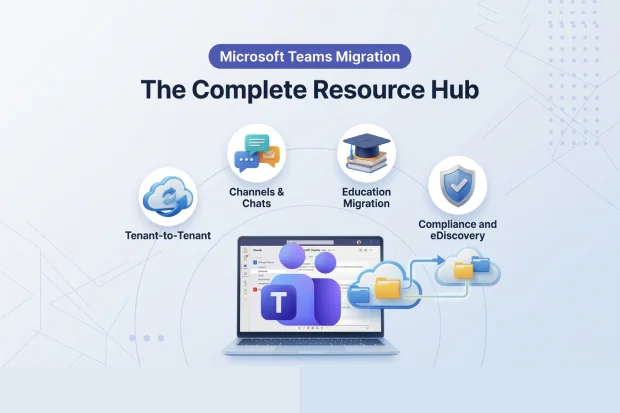
Microsoft Teams migration is the process of moving Teams data, collaboration structures, and connected workloads from one Microsoft 365 environment to another. In real-world projects, that rarely stays limited to one workload – it expands into identity, channels, chats, files, permissions, compliance, and sometimes education. There is no single native tool that handles Microsoft Teams’ migration end-to-end.
This hub brings together every workstream that shapes a successful Microsoft Teams migration. Each section covers what makes that area difficult and where to go for the full walkthrough – forming a complete set of Teams migration best practices built from real-world tenant-to-tenant projects.
If you are preparing for a merger, acquisition, divestiture, tenant consolidation, or academic restructuring, start here.
- What this hub covers
- Migration Planning
- Migration Best Practices
- Teams Tenant-to-Tenant Migration
- Teams Channel Migration
- Teams Chat Migration
- Education Teams Migration
- Compliance, Legal Hold, and eDiscovery
- How These Workstreams Depend on Each Other
- Start Your Microsoft Teams Migration
- Frequently Asked Questions
What this hub covers
| Workstream | Why It Matters |
|---|---|
| Planning | Most delays start here, not during execution |
| Best Practices | Technical success ≠ user success |
| Tenant-to-Tenant | One wrong dependency breaks everything downstream |
| Channels | The workload that looks simple but causes the most data loss |
| Chats | The first thing users notice – and complain about |
| Education | Academic continuity, not just data continuity |
| Compliance | The blocker that stalls migrations after technical work is done |
Migration Planning
Many Microsoft Teams migration problems begin before any data moves. A structured migration planning checklist helps surface risks early – before they become execution failures.
The most common planning gaps:
- Scope changes mid-project because inactive teams turn out to hold compliance-critical data.
- Timelines built on file size alone miss Graph API rate limits and identity mapping complexity.
- Communication happens too late – users are confused on cutover day and IT is buried in tickets.
- Rollback plans exist on paper but were never tested with measurable triggers.
When planning is rushed, even a technically sound migration becomes harder to control. This stage is less about paperwork and more about preventing avoidable disruption later.
Migration Best Practices
Knowing what to migrate is only part of the challenge – how you execute matters just as much. Skipping pilot runs, underestimating coexistence timelines, or running batches without delta sync checkpoints can turn a well-planned project into weeks of remediation.
Teams migration best practices focus on the patterns that hold the whole project together – batching strategy, validation checkpoints, user acceptance testing, and knowing when to pause versus push forward.
Teams that skip this step often find that their technical migration succeeds while the user experience still feels broken on cutover day.
Teams Tenant-to-Tenant Migration
The real complexity often begins below Teams itself. Before data can move, identity mapping, cross-tenant access, licensing, coexistence, and application permissions all need to line up across both Microsoft 365 environments.
When any layer is wrong, the consequences cascade:
- A missing cross-tenant access policy blocks authentication entirely.
- A bad UPN mapping silently misroutes ownership, permissions, and chat history.
- A license gap causes an entire batch to fail with no visible error.
- No coexistence plan leaves users stranded between two tenants during phased waves.
That is why our tenant-to-tenant migration guide matters as more than background reading. If you are ready to configure cross-tenant access and user mapping, the step-by-step setup guide walks through each configuration in detail.
Teams Channel Migration
Channel migration sounds straightforward until you hit the differences between standard, private, and shared channels. Each has its own structure, permissions model, and SharePoint dependency – which means channel data migration is rarely just moving content from one tenant to another.
What users notice after cutover is not whether a channel name exists, but whether conversations, files, metadata, and membership are intact. If those are incomplete, the channel looks present but feels unusable.
This part of the project often looks easier in theory than it feels in practice.
Teams Chat Migration
Chat history is the fastest way users judge whether a Microsoft Teams migration is complete. Even when everything else has moved, missing conversations make the new environment feel broken.
What goes wrong most often:
- Native compliance exports produce JSON or PST files – not searchable Teams conversations.
- eDiscovery outputs are designed for legal review, not for end-user access.
- Rich content like emojis, GIFs, stickers, and inline images is lost in manual workarounds.
Our Microsoft Teams chat migration guide goes deeper into that user-impact layer – where project teams realize technical completion and user completion are not the same thing. For service account setup and scope configuration, the private chat migration setup guide covers each step.
Education Teams Migration
Education environments add complexity because Microsoft Teams for Education includes academic workflows that corporate environments do not have.
Components at risk during migration:
- Class Teams – Class Notebook with permission-separated sections, plus Assignments, Grades, Classwork, and Class Materials.
- Staff Teams – administrative notebooks, policy documents, and department planning resources.
- PLC Teams – cross-faculty collaboration history and shared resources.
- SharePoint dependencies – every education team type relies on its associated SharePoint site for storage and permissions.
When any of these are incomplete, teachers lose lesson plans, students lose assignments, and classrooms stop functioning. That is why we cover this separately in our Education Teams Migration Guide – it is not just a data migration; it is an academic continuity project. Institutions ready to begin can follow the Teams for Education migration setup guide for workload-specific steps.
Compliance, Legal Hold, and eDiscovery
Compliance is often the workstream that changes the direction of a migration late in the project. A migration may look technically ready, but once legal hold, retention, and compliance and eDiscovery requirements are reviewed, the timeline can shift entirely.
What is on hold, what can move, and what protections need to be recreated in the target tenant can all affect scope, sequencing, and legal defensibility.
This is why compliance should be treated as an early planning stream, not a last-minute review. It is usually where technical readiness stops being the only question – and where Legal has to be in the room.
How These Workstreams Depend on Each Other
| If this goes wrong… | It breaks… |
|---|---|
| Planning | Everything – scope gaps cascade into every workstream |
| Tenant-to-Tenant setup | Channels, chats, files, permissions – all fail downstream |
| Channel migration | Daily collaboration – users land in empty workspaces |
| Chat migration | User trust – the migration “feels” incomplete |
| Education migration | Teaching continuity – classrooms stop functioning |
| Compliance review | Timeline – held mailboxes block entire batches |
Looking at these areas together is what separates a smooth migration from one that keeps hitting unexpected blockers. If you are unsure where to start, the navigation table above will point you to the workstream that matters most for your scenario.
Start Your Microsoft Teams Migration
Planning is only part of the journey. Once scope and risks are clear, execution depends on having a team’s migration tool that supports the broader MS Teams migration scenario – teams, channels, conversations, files, associated SharePoint sites, full teams chat history, and education workloads.
Apps4.Pro Migration Manager is built to migrate Microsoft Teams across mergers, acquisitions, divestitures, tenant consolidations, and academic transitions. Thousands of organizations have used it to complete full-scope migrations.
Start your free 15-day trial →
Need help with a larger project? Apps4.Pro also offers Microsoft Teams Migration as a Service for enterprise-scale scenarios. Book a free demo to walk through your specific needs.

















 Migrate
 Manage
 Migrate Microsoft 365








