


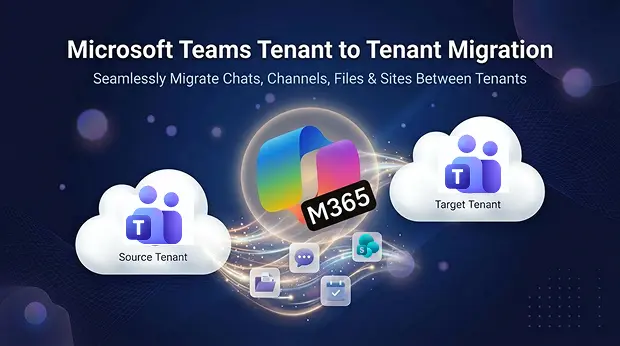
Microsoft Teams tenant to tenant migration is one of the most complex workloads in any Microsoft 365 consolidation project. Whether you’re going through a merger, acquisition, divestiture, or rebranding, moving Teams data – including conversations, files, tabs, memberships, and settings from one tenant to another requires careful planning across identity, licensing, and data migration layers.
This blog covers every phase of a successful Teams tenant-to-tenant migration from identity configuration and compliance readiness to migration execution and post-migration validation.
Looking for a broader migration strategy? Read our complete guide on Microsoft Teams migration resource hub for planning, governance, and execution frameworks.
Why Organizations Need Teams Tenant to Tenant Migration
Organizations commonly need to migrate Microsoft Teams between tenants during:
- Mergers & Acquisitions (M&A) consolidating two organizations into a single Microsoft 365 tenant
- Divestitures & Spin-offs separate a business unit into its own tenant
- Tenant consolidation merging multiple Microsoft 365 tenants after organic growth
- Rebrand moving to a new domain and tenant identity
In each scenario, the migration plan must preserve collaboration continuity, retain access to files and conversations, and maintain security and compliance controls across both Microsoft 365 environments. Before moving any Teams data, configure identity trust between the source and target tenants.
Microsoft Entra ID (Azure AD) Considerations
Identity is the foundation of any Teams migration between tenants. Microsoft Teams relies on Microsoft Entra ID (formerly Azure AD) for authentication, group membership, and access control.
Cross-Tenant Access Settings
Configure cross-tenant access policies in Microsoft Entra ID to establish trust between tenants. Navigate to Microsoft Entra admin center → External Identities → Cross-tenant access settings to add your partner tenant ID and define inbound/outbound trust policies.
Cross-Tenant Synchronization
If users must exist in both tenants during migration, enable cross-tenant synchronization. This automatically provisions user accounts across tenants, maintaining attribute parity (display name, UPN, department) – essential for coexistence during phased migrations.
Domain Verification
Verify your target domain in the destination tenant. A domain can only be verified in one tenant at a time, so schedule your DNS cutover during a low-activity window to minimize disruption.
Microsoft Graph API App Registrations
Register an Azure AD application in both tenants with the required Microsoft Graph API permissions for Teams, SharePoint, and user profile access. Ensure admin consent is granted in both the source and target tenants.
User Mapping and License Requirements
Accurate user mapping is critical to preserve Teams memberships, ownership, and permissions in the target tenant.
UPN Mapping Between Tenants
Create a mapping file matching each source user’s UPN to their target tenant identity. If UPN domains differ (e.g., user@source.com → user@target.com), the mapping file ensures the migration tool correctly reassigns ownership and membership.
License Requirements
Before starting migration, verify that:
- All target users have active Microsoft 365 licenses with Teams enabled
- License type match or exceed source capabilities (e.g., E3/E5 feature parity)
- Migration admin accounts should have Global Administrator or Teams Administrator roles in both tenants. In addition, SharePoint Administrator permissions are required to ensure successful migration of Teams files and associated SharePoint content.
Guest Users and External Access
Guest users do not migrate automatically. Re-invite guest users to the target tenant or map guest accounts using B2B collaboration settings in Microsoft Entra ID. Review external access and federation settings in the target Teams admin center.
Data Cleanup and Compliance Readiness
Before migrating, audit your source environment to reduce volume, avoid errors, and address compliance blockers.
- Archive stale teams – identify inactive teams (no activity in 90–180 days), archive or delete those with no business value
- Review retention policies and eDiscovery hold – these can block migration; ensure equivalent policies exist in the target tenant and coordinate with legal teams
- Document sensitivity labels and DLP policies – verify matching labels exist in the target tenant and test classification behavior post-migration
Pre-Migration Checklist
Complete these steps before initiating your Microsoft Teams tenant-to-tenant migration.
| Task | Details |
|---|---|
| 1.Inventory all Teams | Document every team, channel type (standard, private, shared), associated SharePoint sites, and data volume |
| 2.Identify critical teams | Prioritize by business impact and plan migration waves accordingly |
| 3.Clean up stale data | Archive or delete inactive teams; reduce unnecessary data volume |
| 4.Review compliance dependencies | Verify retention policies, eDiscovery holds, sensitivity labels |
| 5.Create migration admin accounts | Set up dedicated admin accounts with Global Admin or Teams Admin roles in both tenants |
| 6.Configure Microsoft Entra ID | Set up cross-tenant access, verify domains, enable cross-tenant sync |
| 7.Register Microsoft Graph API app | Register Azure AD app in both tenants; grant admin consent |
| 8.Verify target licenses | Ensure all users have active M365 licenses with Teams enabled |
| 9.Prepare user mapping file | Map source UPNs to target UPNs; include guest users and shared mailboxes |
| 10.Document apps and tabs | List tabs (Planner, OneNote, Office365, Website, Power Platform apps) requiring post-migration reconfiguration |
| 11.Define coexistence strategy | Set cross-tenant federation, guest access, and collaboration rules during migration |
| 12.Run a pilot migration | Migrate a non-critical team end-to-end; validate conversations, files, tabs, permissions |
| 13.Prepare user communication plan | Draft FAQs, timelines, and onboarding materials |
For a detailed setup walkthrough, refer to our Microsoft Teams migration setup guide.
Coexistence During Phased Migration
Most enterprise migrations happen in waves. During the transition window, keep users productive across both tenants:
- External access (federation): Enable Teams federation between source and target tenants for cross-tenant chat and calling
- Shared channels: Allow users from both tenants to collaborate in the same channel – note each shared channel has its own SharePoint site
- Guest access: Temporarily add migrated users as guests in the source tenant to maintain access to unmigrated teams
- Set a firm coexistence end date to prevent governance drifting and duplicate data
Timeline and Performance Expectations
Migration timelines should be planned based on data volume rather than just the number of Teams. Factors such as conversation history depth, total file size, and the presence of private or shared channels significantly impact migration speed, as each requires separate processing.
Additionally, Microsoft Graph API throttling can affect overall performance. Environments with larger data volumes and complex structures will take longer and should be migrated in phases. To ensure a smooth process, it is recommended to include a 20–30% buffer in your timeline for validation, troubleshooting, and re-runs.
What Apps4.Pro Migration Manager Migrates
Apps4.Pro Migration Manager is a web-based solution that works across different operating systems such as Windows, Mac, and Linux via the Edge browser, enabling full-fidelity Microsoft Teams migrations without data loss.
Teams & Group Migration
- Teams and their associated Microsoft 365 group and settings
- Team users (members and owners)
- Team-specific settings (member, messaging, guest settings)
Channel Migration
Transfer standard, private, and shared channels to a new or existing team in the target tenant. Learn more about Teams channel migration
- Channel-specific settings
- Channel conversations (posted as individual conversations or HTML file)
- Files tab (folders, sub-folders, files with metadata)
Tabs and Apps Migration
- Files tab, OneNote, office tab, and website tab
- Planner (buckets, tasks, labels, attachments, and comments)
Teams Chat Migration
Migrate 1:1, group and meeting chat history between tenants, preserving message content, timestamps, and attachments for compliance and continuity.
Post-Migration Validation
After completing migration, perform these checks to confirm data integrity.
Membership and Ownership Verification
Confirm all team owners and members are correctly mapped. Check that Entra ID group memberships match the source and no users were dropped.
Content Integrity Checks
- Verify conversations appear with correct timestamps and sender attribution
- Confirm files and folder structures transferred to associated SharePoint sites
- Test Planner boards, OneNote, and other tabs for completeness
- Validate private/shared channel content separately – check their dedicated SharePoint sites
Permissions and Security Review
- Validate private/shared channel membership and permissions
- Review guest access and external collaboration settings
- Confirm compliance policies (retention, DLP, sensitivity labels) are applied in the target tenant
- Reconfigure apps requiring OAuth re-consent (Power Platform connectors, custom bots)
User Acceptance Testing
Have representative users verify their day-to-day Teams workflows. Track incidents by category (missing files, permission errors, app issues) and resolve systematically before decommissioning the source tenant.
Start Your Microsoft Teams Migration Today
Apps4.Pro Migration Manager makes Microsoft Teams tenant-to-tenant migration simple, secure, and complete – conversations, channels, files, SharePoint sites, Planner, OneNote, settings, and full chat history from a web-based interface with real-time monitoring.
Start your 15 days free trial today →
Need expert assistance? Apps4.Pro also offers Microsoft Teams Migration as a Service for enterprise-scale migrations. Book a free demo → to see how Apps4.Pro handles your M&A, divestiture, or consolidation scenario.

















 Migrate
 Manage
 Migrate Microsoft 365








