


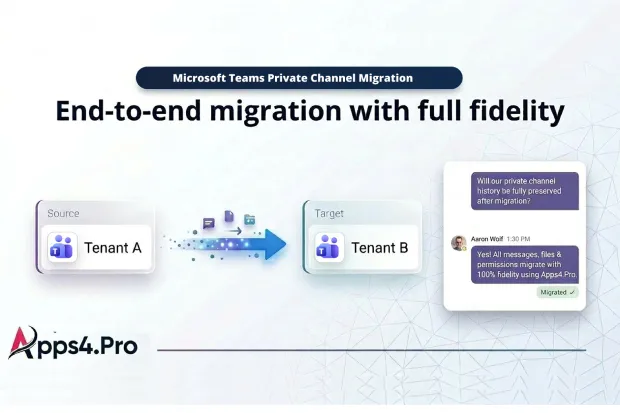
Private Channels are often where your most sensitive, high stakes conversations live in Microsoft Teams, so it is natural to feel cautious about touching them. Standard Channels and files may move without much drama, but Private Channel conversations, membership, and compliance rules can easily turn into painful surprises if they are not handled correctly.
This article focuses only on Microsoft Teams Private Channel migration, so you have a clear path to move these restricted spaces between tenants without guesswork. As you read through, you will see how Apps4.Pro Migration Manager helps you turn what looks risky on the surface into a controlled and repeatable process.
To explore more on overall Microsoft Teams migration, including deep dives into specific workloads, visit the Microsoft Teams Migration Hub – All in One Place.
- Why Microsoft Teams Private Channel Migration Is Different
- What’s New In Microsoft Teams Private Channels
- Why Use Apps4.Pro For Private Channel Migration
- What Gets Migrated In A Private Channel
- Channel Type Conversion Options In Teams Migration
- Step By Step: How To Migrate Private Channels With Apps4.Pro
- Ensuring Security And Compliance During Private Channel Migration
- Improving End User Experience During Migration
- FAQs: Microsoft Teams Private Channel Migration
Why Microsoft Teams Private Channel Migration Is Different
Once you look under the hood, a Private Channel is clearly more than just a simple Standard Channel. It lives in its own collaboration bubble with its own permissions and its own dedicated SharePoint site, separate from the Parent Team Associated site, and that changes everything when you try to move it.
These details matter because they directly affect how safe your migration will be:
- Membership and permissions do not automatically come along with the parent team, so copying the team alone does not protect access.
- Messages and files are stored differently from Standard Channels, which means simple file copy approaches leave gaps in history and context.
- Microsoft is shifting Private Channel compliance from user mailboxes to the group mailbox, which changes how investigators and auditors retrieve evidence after a migration.
If you treat Private Channels like any other channel, you risk finding out later that leaders cannot see what they need or that your compliance team cannot reconstruct conversations. Understanding these differences now positions you to avoid those headaches entirely.
What’s New In Microsoft Teams Private Channels
Microsoft has updated limits and storage for Microsoft Teams Private Channels, which affects how you plan Private Channel tenant to tenant migration and compliance.
Key changes in limits:
- Older limits were about 30 Private Channels per team and 250 members per Private Channel, within 1000 total channels per team.
- Microsoft is moving toward support for up to 1000 Private Channels per team and as many as 5000 members in a single Private Channel, still inside the 1000 channel per team cap.
Key changes in storage and compliance:
- Previously, Private Channel messages were stored in each member’s Exchange Online mailbox, which made Teams retention and eDiscovery depend on many user mailboxes.
- Now Microsoft is shifting Private Channel messages into the team group mailbox, aligning Private Channels with Standard Channels for Microsoft Purview retention, legal hold, DLP, and eDiscovery.
Successfully navigating Microsoft Teams Private Channel migration requires tools that support the latest channel limits and transition channels to the new group mailbox storage model. By meeting these requirements, you ensure governance and compliance continue uninterrupted after migration. Now, let’s explore how Apps4.Pro can help you address these evolving challenges and empower your organization for seamless Teams Private Channel migration.
Get Your Private Channels Migration Ready
Apps4.Pro automatically pulls a full Inventory of your Microsoft Teams Private Channels, that helps you plan the migration with suggested timelines, wave groupings, and target environment requirements.
Reach out to us to generate you Personalized Private Channel Plan.
Why Use Apps4.Pro For Private Channel Migration
Many Microsoft Teams migration tools quietly list Private Channels as a limitation or treat them as an afterthought, which forces teams into manual workarounds at the worst possible moment.
Apps4.Pro Migration Manager is designed to do the opposite. It treats Private Channels as a core workload in Microsoft 365 tenant to tenant migration, which gives you room to plan instead of patch.
With Apps4.Pro on your side, you can:
- Move standard, private, and shared Channels in the same project without forcing Private Channels into risky manual paths.
- Preserve Private Channel membership and permissions exactly as they are defined in the source, which avoids a painful Manual process.
- Use automated user mapping to keep identities in sync even when accounts or domains have changed between tenants.
Knowing that these capabilities you can talk with security, compliance, and business owners with confidence because you are not relying on ad hoc scripts or best effort copying to protect their most sensitive Teams spaces.
Book a 30-minute “Private Channel Migration Demo” to move straight from theory to seeing the product in action.
What Gets Migrated In A Private Channel
Apps4.Pro Migration Manager is designed to bring across the working environment, not just isolated files:
- Owners and members move with their roles intact, so it is obvious who can see what in the new tenant.
- Conversations move in a way that lets users continue to search and follow historical discussions right from Teams, instead of losing context in static export files.
- Files and folders come across from the separate dedicated Private Channel SharePoint site, with the structure recreated in the target environment.
- Settings and supported tabs move too, so users open the new channel and feel that nothing important is missing.
By spelling out this level of coverage, you can trust Apps4.Pro to protect the relationships and workflows inside Private Channels, not just the raw data.
Instead of carrying every legacy privacy choice into the new tenant, you can right-size access, reduce channel sprawl, and align each workspace with today’s governance. This is where Apps4.Pro play a vital role in making these conversations happen.
Channel Type Conversion Options In Teams Migration
Once you understand what is moving, the next question is often whether you can also improve the way channels are structured as you go. Many organizations use migration as the moment to tidy up where collaboration lives and who can see what.
With Apps4.Pro Migration Manager, you can handle several useful channel type transitions:
- Convert a Private Channel into a Standard Channel when you want to open up access to a wider audience without losing history.
- Turn a Standard Channel into a Private Channel where you need tighter control around sensitive topics.
Presenting these options offers clarity on streamlining channels and aligning their structure with current governance. By realigning channels to match today’s organisational needs, you avoid carrying over outdated choices.
Once you decide which channels remain private, which become standard, and where shared access applies, you can execute the plan confidently – preserving permissions, conversations, and files. This process prevents rework, safeguards access, and ensures stakeholders find the new tenant ready for use from day one.
Step By Step: How To Migrate Private Channels With Apps4.Pro
Private Channels follow the same core engine as full Teams migrations in Apps4.Pro, but with extra focus on permissions and separate sites.
Here is a detailed stepwise guide to use Apps4.Pro Migration Manager Private Channels Migration.
1. Connect Source And Destination Tenants
Connect both Microsoft 365 tenants using secure OAuth based authentication inside Apps4.Pro Migration Manager. You keep control over permissions while giving the tool what it needs to read and create Teams and Private Channels.
2. Discover Teams And Private Channels
Run a discovery so Apps4.Pro can list all teams – Standard Channels, Private Channels, and Shared Channels. This gives you a clear inventory of which Private Channels exist and where they sit today.
3. Design Your Migration Waves
Group Private Channels into logical waves based on business unit, sensitivity, or owner. This keeps high risk or executive Private Channels in focused batches you can monitor closely.
4. Configure Private Channel Migration Options
Choose the target team for each Private Channel, decide on naming, and exclude test or unused channels from the project. These options help you clean up structure instead of cloning every Private Channel blindly.
5. Run A Pilot Private Channel Migration
Pick a small but representative set of Private Channels and run a pilot first. Use the results to refine mappings, permissions, and communication before you run the full migration.
6. Execute Full Migration And Incremental Runs
After validating the pilot, run the full private channel migration for each planned wave. Then perform incremental syncs to capture any new messages, membership changes, or files created during the migration, so the final cutover happens with minimal data drift.
If you need step by step UI details and prerequisites for each phase, refer to the Microsoft Teams Migration Guide
Ensuring Security And Compliance During Private Channel Migration
Teams Private Channels are where many organizations keep leadership conversations, HR cases, deal work, and other topics that should never leak. When you move these spaces, you want to be absolutely sure that access and retention still line up with your policies afterwards.
Apps4.Pro helps you stay in control by:
- Recreating Private Channel owners and members based on the original security model from the Source Tenant.
- Supporting Microsoft’s updated compliance behavior where Private Channel messages are tied to the Group Mailbox for retention and eDiscovery.
- Running under ISO certified processes that are designed for customers with strict security and privacy expectations.
Security and compliance are essential, but migration success also depends on users easily accessing Private Channels and continuing work without confusion. Careful planning of the user experience helps ensure high adoption and reduces support requests.
Improving End User Experience During Migration
For people who use Private Channels every day, the ideal migration experience is quiet and boring. They just open Teams in the new tenant and find their familiar channels, tabs, and files waiting for them.
Apps4.Pro supports that kind of experience because:
- Private Channels, tabs, and file structures are recreated in a way that feels familiar, so users can jump straight back into their work.
- Chat and channel history stay in Teams where people naturally search, instead of being hidden away in separate export files.
- You can choose migration windows that line up with communication plans, training sessions, and go live announcements.
Get this simple Email Template pack that channel owners can send to members before and after the migration, so everyone knows what to expect.
FAQs: Microsoft Teams Private Channel Migration
Plan Your Full Teams Migration, Not Just Private Channels
- Step back and review Teams chats, Standard Channels, Private Channels, Shared Channels, and associated SharePoint in a single strategy call.
Ready for a seamless Teams move? Schedule your End-to-End Migration Consultation now!

















 Migrate
 Manage
 Migrate Microsoft 365








