


- Key Takeaways
- What Is Microsoft 365 Cross-Tenant Mailbox Migration?
- Does Microsoft Provide A Native Cross-Tenant Mailbox Migration Tool?
- How Microsoft’s Native Cross-Tenant Mailbox Migration Works, Step By Step
- Microsoft 365 Cross-Tenant Migration Prerequisites
- Cross-Tenant Migration Licensing: What You Pay For
- What Does Microsoft’s Native Cross-Tenant Mailbox Migration Migrate?
- Limitations Of Microsoft’s Native Cross-Tenant Mailbox Migration
- Native Microsoft 365 Migration Vs. Third-Party Migration Tools
- Where Apps4.Pro Fits In A Tenant-To-Tenant Migration
- When To Use Microsoft’s Native Migration Vs. Apps4.Pro
- Microsoft 365 Cross-Tenant Mailbox Migration Checklist
- Frequently Asked Questions
Key Takeaways
- The Microsoft 365 cross-tenant mailbox migration native tool is generally available and moves Exchange Online mailboxes server-side, run from the target tenant.
- Every migrating user needs a Cross Tenant User Data Migration add-on license, assigned in either tenant. Microsoft states migrations fail without it.
- Target users must already exist as MailUsers stamped with the source ExchangeGUID, ArchiveGUID, and x500 addresses before any mailbox can move.
- Mailboxes on any hold are blocked, mailboxes over 200 GB are unsupported, and the source mailbox is deleted after a successful move.
- Only mailbox content moves. Microsoft 365 Groups, labels, signatures, and Send on Behalf permissions each need a separate plan.
- Microsoft’s migration orchestrator, introduced in public preview in December 2025, adds OneDrive and Teams chats but not SharePoint sites or Teams channels.
- Third-party platforms suit multi-workload projects. Confirm which API each tool uses, because Exchange Web Services retirement begins in October 2026.
The deal closed on Friday. By Monday, IT has a list: 800 people at the acquired company need to work in your Microsoft 365 tenant, under your domain, before the transition services agreement runs out.
The first question is usually simple: can Microsoft move those mailboxes for us, or do we need a migration tool?
Microsoft 365 does have a native cross-tenant mailbox migration capability. It moves Exchange Online mailboxes between tenants using the Mailbox Replication Service (MRS), the same engine behind hybrid mailbox moves. It is generally available, runs entirely inside Microsoft’s cloud, and requires a paid per-user add-on license.
Whether it fits your project is a separate question. The native tool is strict about how target accounts are prepared. It refuses some mailboxes outright, and it handles mailbox content only. Identities, domains, groups, SharePoint, and Teams channels remain separate workstreams.
This guide covers what Microsoft’s native tool does, what it requires, where it gets difficult, and when a dedicated platform is worth evaluating instead.
What Is Microsoft 365 Cross-Tenant Mailbox Migration?
Microsoft 365 cross-tenant mailbox migration moves Exchange Online mailboxes from one Microsoft 365 tenant (the source) to another (the target). A tenant is an organization’s own Microsoft 365 instance. It has its own Microsoft Entra ID directory, verified domains, and Exchange Online organization.
Each tenant is a separate identity and security boundary, so a user in tenant A can’t simply be reassigned to tenant B. The mailbox data has to move, and a new identity must already exist on the other side to receive it.
Microsoft’s tenant-to-tenant migration planning guide lists the usual triggers:
- Merger or acquisition: consolidating the acquired company into the parent tenant.
- Divestiture or spin-off: moving a business unit to a new or buyer-owned tenant.
- Tenant consolidation: collapsing tenants left over from earlier acquisitions.
- Internal reorganization: moving users between tenants within the same group.
In a Microsoft 365 migration for mergers and acquisitions, the mailbox is usually one workstream among several. Identity, domains, OneDrive, SharePoint, Teams, and devices each have their own path. Microsoft’s native mailbox tool handles only the mailbox piece.
Does Microsoft Provide A Native Cross-Tenant Mailbox Migration Tool?
Yes. Microsoft supports cross-tenant mailbox migration natively. Administrators create migration batches with the New-MigrationBatch cmdlet in Exchange Online PowerShell, or submit them from the new Exchange admin center by choosing the cross-tenant option. The feature supports cloud-only tenants, hybrid tenants, or a mix of both.
It is a true mailbox move, not a copy. MRS synchronizes the mailbox into the target tenant. When the move completes, Exchange converts the source mailbox into a MailUser that routes mail to the new location.
Microsoft currently offers two native routes for Exchange Online cross-tenant migration:
Native route | What it moves | How it’s run | Status |
Exchange Online mailboxes, including archives | Exchange Online PowerShell or the Exchange admin center, from the target tenant | Generally available | |
Exchange mailboxes, OneDrive, Teams chats and Teams meetings in one batch | PowerShell, with mandatory Cross-Tenant Identity Mapping | Introduced in public preview in December 2025; check Microsoft Learn for current status |
Separate native tools exist for cross-tenant OneDrive migration and SharePoint, both driven from SharePoint Online PowerShell.
How native migration differs from older methods
Before this capability existed, tenant-to-tenant mail moves typically relied on PST export and import, IMAP-based copies, or third-party tools. The native approach differs in three ways:
- Data never leaves Microsoft’s cloud.
- The mailbox is moved, not copied, so it no longer exists in the source tenant afterward.
- Preparation is heavier. The target object needs specific Exchange attributes before anything can move.
How Microsoft’s Native Cross-Tenant Mailbox Migration Works, Step By Step
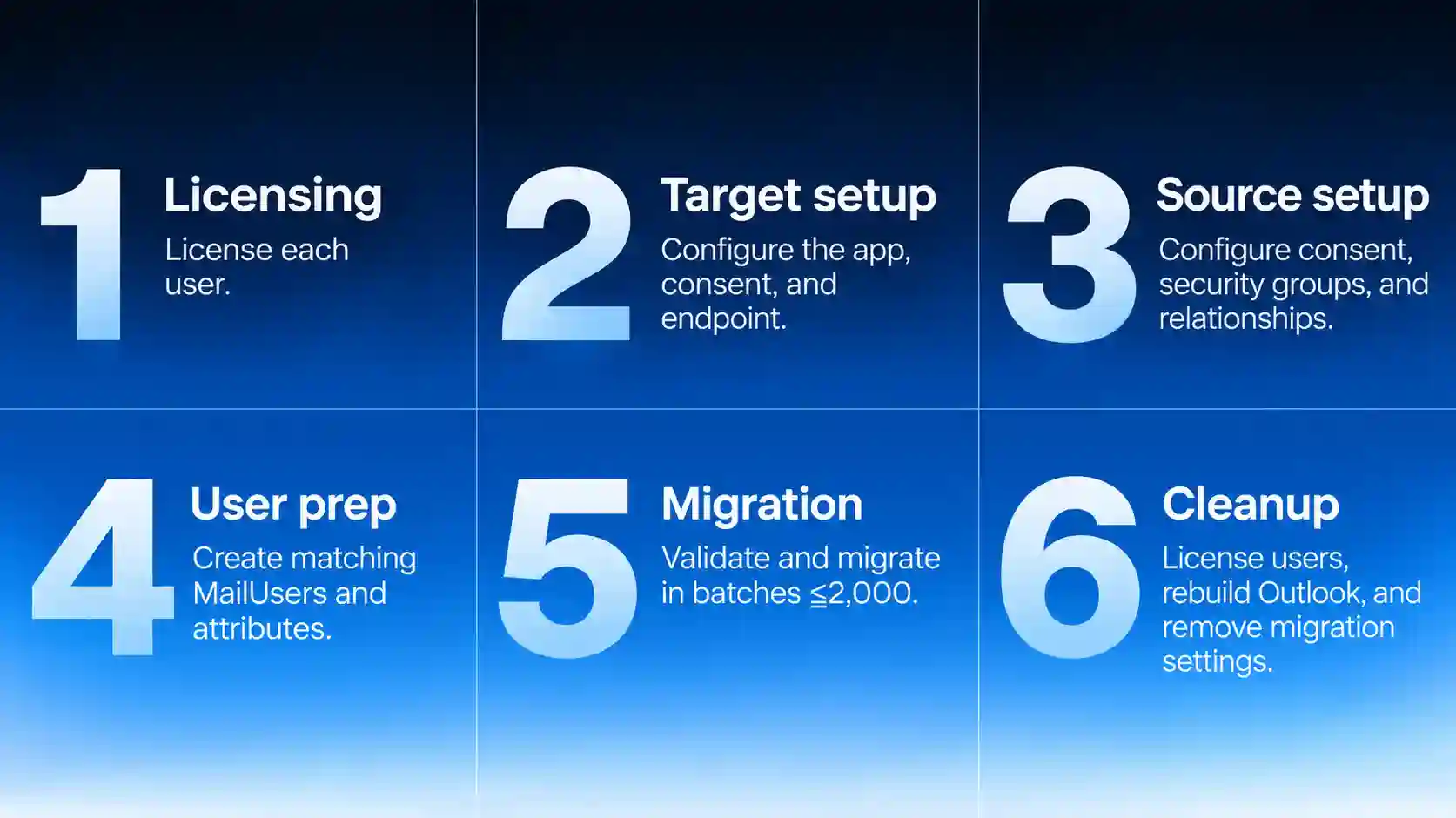
The native process has six stages, and the target tenant is configured first. Source and target administrators each complete their own steps. Neither needs the other tenant’s admin credentials.
1. Confirm licensing
Buy, or confirm you can buy, a Cross Tenant User Data Migration license for every user you plan to move. Microsoft states that migrations fail without it and that it makes no exceptions.
2. Prepare the target tenant
- In the Microsoft Entra admin center, register a multi-tenant application with the redirect URI https://office.com.
- Add the Office 365 Exchange Online > Mailbox.Migration application permission, then create a client secret. The secret is shown only once, so store it securely.
- Grant admin consent in the target tenant. Then send the source administrator a consent URL for the same application ID.
- In Exchange Online PowerShell, create a migration endpoint with New-MigrationEndpoint, using remote server outlook.office.com and -ExchangeRemoteMove. This step fails until the source tenant has consented to the app.
- Create an organization relationship to the source tenant ID with -MailboxMoveEnabled and -MailboxMoveCapability Inbound.
3. Prepare the source tenant
- Open the consent URL and accept the migration application.
- Create at least one mail-enabled security group. Only members of this group can be moved, which stops unintended users from leaving. Microsoft recommends multiple groups above 10,000 users and advises against nested groups.
- Create an organization relationship to the target tenant ID. Set:-MailboxMoveCapability RemoteOutbound, the app ID as -OAuthApplicationId, and the group as -MailboxMovePublishedScopes.
4. Prepare target user objects
Most of the project effort goes into this stage. Each user must already exist in the target as a MailUser, a mail-enabled user without a mailbox, that mirrors the source mailbox:
- ExchangeGUID matching the source mailbox.
- ArchiveGUID matching the source archive, if one exists.
- The source LegacyExchangeDN added as an x500: proxy address, plus every x500 address on the source mailbox.
- A UPN and primary SMTP address in the target’s domains.
- ExternalEmailAddress (targetAddress) pointing to the user’s current source mailbox.
Don’t assign an Exchange Online license to the target user before ExchangeGUID is stamped. If you do, Exchange provisions a new, empty mailbox, and the migrated mailbox has nowhere to land.
Microsoft’s Cross-Tenant Identity Mapping PowerShell module can stamp these attributes automatically. It is optional for standalone mailbox moves and required for the orchestrator.
5. Validate and run migration batches
- Test the configuration by running Test-MigrationServerAvailability against the endpoint and a target MailUser. Microsoft also publishes a cross-tenant validation script that checks both tenants and all objects at once.
- Create batches from the target tenant with New-MigrationBatch, a CSV of target-side email addresses, and -TargetDeliveryDomain.
- Keep each batch to 2,000 mailboxes or fewer. Microsoft recommends submitting batches about two weeks before cutover, because users aren’t affected while data synchronizes.
6. Complete the migration and clean up
When a move completes, Exchange automatically converts the target MailUser into a mailbox and the source mailbox into a MailUser. After that:
- Assign target Exchange Online licenses. Microsoft suggests doing this within the 30-day grace period after migration.
- Have users rebuild Outlook profiles with their new UPN and address. Plan network capacity for OST and offline address book downloads.
- In hybrid environments, update on-premises MailUsers with the new targetAddress so free/busy lookups resolve correctly.
- Re-apply Send on Behalf permissions and recreate Teams meetings (see below).
- Remove the migration endpoint and organization relationships when the project ends.
- Convert source MailUsers to mail contacts, or remove them, once mail no longer needs to route through the source tenant.
Microsoft 365 Cross-Tenant Migration Prerequisites
The requirements fall into seven areas, and all of them must be in place before the first batch runs. When something is missing, the move typically fails with a named exception listed in Microsoft’s migration failures reference.
Area | Requirement | Where it’s set |
Tenants | Both tenants in the same Microsoft cloud; moves such as worldwide to government cloud aren’t supported | Both |
Tenants | Different domain names in source and target; a domain can belong to only one tenant | Both |
Licensing | Cross Tenant User Data Migration add-on for every migrating user, assigned to the source or target object | Either |
Licensing | Appropriate Exchange Online licenses for users in both tenants | Both |
Admin roles | Organization Administrator, the only role that can set MailboxMoveCapability on the organization relationship | Both |
Admin roles | Move Mailboxes role to create and run batches; this can be delegated | Target |
Admin roles | An Entra administrator who can register the app and grant tenant-wide admin consent | Both |
Configuration | Multi-tenant Entra app with the Mailbox.Migration permission and a client secret | Target (consented in source) |
Configuration | Migration endpoint created with New-MigrationEndpoint | Target |
Configuration | Organization relationships: Inbound on target, RemoteOutbound on source | Both |
Configuration | Mail-enabled security group(s) scoping who can migrate | Source |
Mailboxes | No hold of any type | Source |
Mailboxes | Quota headroom in the target; no more than 12 auxiliary archives | Source |
Identity | Target MailUser with matching GUIDs, all x500 proxies, target-domain UPN and primary SMTP, and targetAddress pointing to the source | Target |
Identity | No stale ExchangeGUID or previous mailbox on the target object; no SMTP proxy from a domain the target doesn’t own | Target |
Encryption | If Microsoft Purview Customer Key is used, configure it in the target as needed; mailboxes are decrypted before they move | Target |
You also need the partner tenant’s tenant ID. This is a GUID, not a domain name, and it’s shown in the Microsoft Entra admin center under Tenant overview.
Cross-Tenant Migration Licensing: What You Pay For
Native migration isn’t free with your subscription. Each migrating user needs the Cross-Tenant User Data Migration add-on. Microsoft describes it as a per-user, one-time fee. It can be assigned to the source or target user object, and the same license covers cross-tenant OneDrive migration.
Per Microsoft’s migration orchestrator overview, the add-on is available for:
- Microsoft 365 Business Basic, Standard and Premium
- Microsoft 365 F1, F3, E3 and E5
- Office 365 F3, E1, E3 and E5
- Standalone Exchange Online, SharePoint and OneDrive plans
- Education plans
Microsoft lists EA, CSP, web direct, small business, and education customers as eligible purchase channels. Microsoft Learn does not publish a price, so get a quote from your Microsoft account team or licensing partner.
If you use the orchestrator for Teams migration, users also need Exchange Online and Teams licenses in both tenants, according to Microsoft’s orchestrator prerequisites.
What Does Microsoft’s Native Cross-Tenant Mailbox Migration Migrate?
Native migration moves user-visible mailbox content and the Recoverable Items folders. It doesn’t move anything stored outside the mailbox. The table consolidates Microsoft’s cross-tenant migration FAQ.
Item | Migrated natively? | What to do |
Email, contacts, calendar, tasks, notes | Yes | Nothing extra |
Recoverable Items (Deletions, Versions, Purges) | Yes | Nothing extra |
Archive and auxiliary archive mailboxes | Yes, up to 12 auxiliary archives | Submit large archives well before cutover |
Shared mailboxes | Yes, with store-level permissions | Recheck delegation after the move |
Voicemails and voicemail greeting | Yes | Saved voicemails don’t appear in the target Teams client UI |
Full Access permissions | Only when owner and delegate move together | Put principals and delegates in the same batch |
Send on Behalf (publicDelegates) | No | Re-apply with Set-Mailbox -GrantSendOnBehalfTo |
Teams meetings in the calendar | Items move, but join links break | Remove and recreate the meetings |
Teams chat folder content | No | The source admin can still search and export it with content search |
Outlook Outbox items | No; Outlook stores them locally | Ask users to send or clear them first |
Mailbox signatures | No | Recreate them in the target |
Sensitivity and retention labels | No; labels can’t be shared across tenants | Recreate labels in the target |
Microsoft 365 Groups | No | Plan a separate method |
Files outside the mailbox | No | Use OneDrive and SharePoint migration tools |
Permissions are often where users notice problems first, especially delegate and executive-assistant setups. Apps4.Pro’s guide to mailbox permissions in tenant-to-tenant migration covers this in more depth.
What happens to the source mailbox after migration?
After a successful move, the source mailbox is deleted. Microsoft states it is no longer available, discoverable, or accessible in the source tenant. Any eDiscovery on that user must then run in the target. If the source organization needs to keep its own copy, Microsoft recommends copying the content to another mailbox before migration.
The source tenant keeps a MailUser whose targetAddress routes mail to the target. Inbound mail passes through the source tenant’s anti-spam, transport rules, and journaling first, then through the target’s, similar to Exchange hybrid mail flow.
Limitations Of Microsoft’s Native Cross-Tenant Mailbox Migration
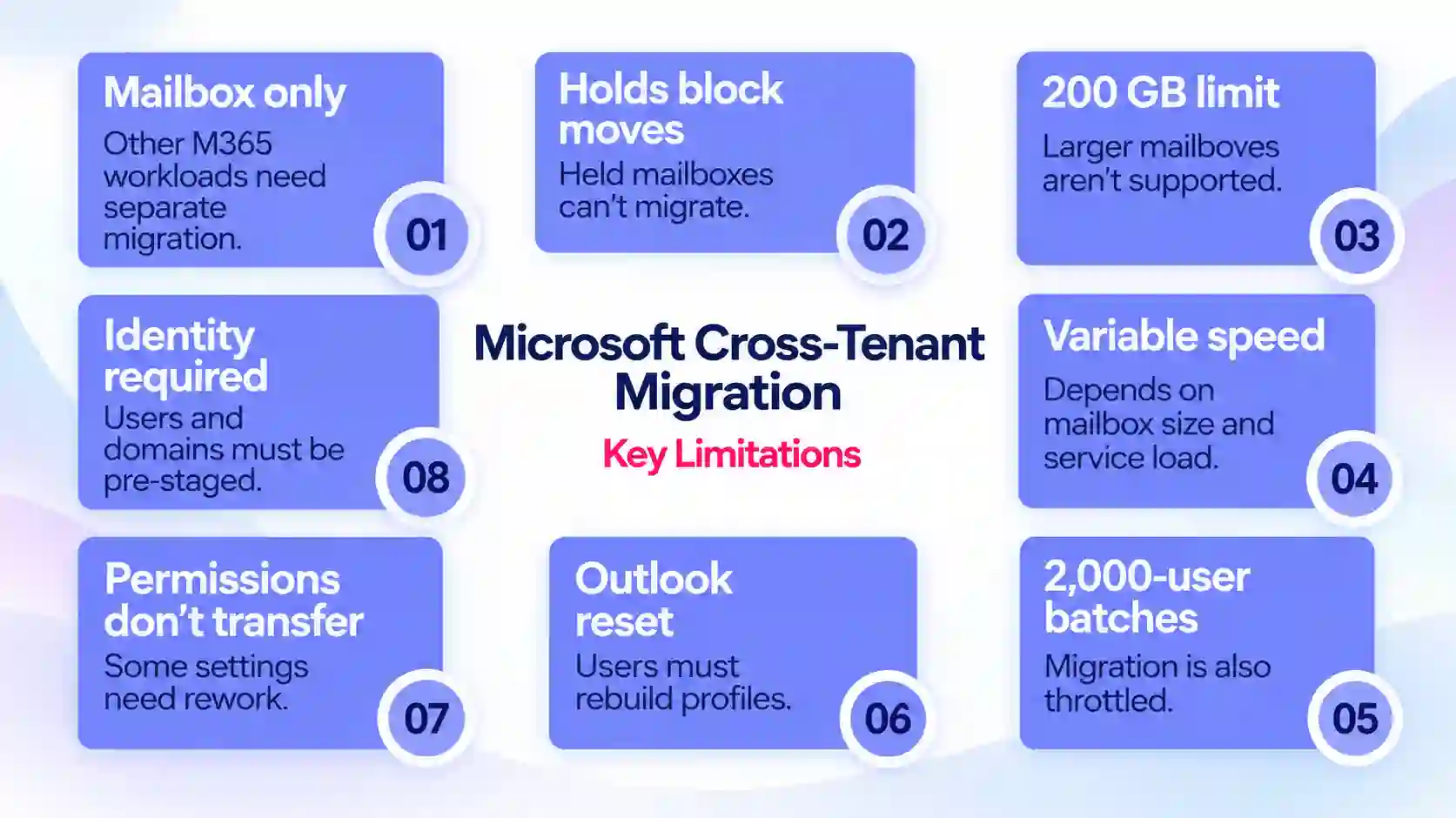
The native tool reliably does what it is designed for. Its constraints come from three areas: a narrow scope, strict preconditions, and an operating model built around PowerShell. Every point below comes from Microsoft documentation.
Scope
- Mailbox content only. Microsoft states that cross-tenant migration moves mailbox data and nothing else. OneDrive and SharePoint have separate native tools. Teams channels, Planner, Power Platform, and Microsoft 365 Groups need other methods.
- Holds block the move. Mailboxes on any type of hold aren’t migrated. In M&A projects with litigation or regulatory holds, that can cover a large share of users.
- Size ceiling. Microsoft’s migration performance guidance lists cross-tenant mailboxes above 200 GB as unsupported. Mailboxes near quota also fail unless you add archive capacity first.
- No cross-cloud moves. Moving from the worldwide cloud to a government cloud isn’t supported.
- Whole-mailbox moves. Microsoft documents no option to filter by date or folder.
Identity and domains
- Pre-staged identities are mandatory. A wrong license order, a stale previous mailbox, or a proxy address from a domain the target doesn’t own will block conversion.
- Domains can’t be shared. A domain can belong to only one tenant at a time. Users typically move to target-domain addresses first, and the original domain can follow only after it’s removed from the source. For projects where usernames and domains both change, see Apps4.Pro’s guide to cross-domain mailbox migration.
- Day-one client impact. Existing Outlook profiles won’t reconnect to the moved mailbox. Users rebuild profiles with their new UPN and address, then resync their OST files.
Permissions and co-existence
- No cross-tenant mailbox permissions. A delegate left behind in the source tenant loses access. Microsoft’s guidance is to batch principals and delegates together.
- Some settings don’t carry over. Send on Behalf, signatures, and labels each need a script or a manual step.
- Teams in the source tenant lose features. Once a user’s mailbox moves, signing in to Teams with the source identity loses calendar access and other mailbox-dependent features.
- Mail flows through the source tenant. Until source MailUsers are removed, inbound mail passes through both tenants’ filtering and rules.
Scale and operations
- Batch sizing. Microsoft recommends no more than 2,000 mailboxes per batch. For more than 50,000 mailboxes, it asks customers to contact their account team or support.
- A shared, throttled service. Mailbox moves are a discretionary workload. They queue alongside other tenants’ moves and slow down when service resources are under load.
- Manual error handling. Several failures require you to remove the user from the batch and resubmit. Examples include an auxiliary archive created mid-move, a user listed in two batches, and internal Microsoft maintenance.
- Cmdlet-based reporting. Status comes from Get-MigrationBatch, Get-MoveRequest, and move reports rather than a project dashboard.
How long does a native cross-tenant mailbox migration take?
Microsoft publishes durations observed in past customer cross-tenant moves:
Mailbox size | Typical duration (P50) | Slower moves (P90) |
0–10 GB | 1 day | 1 day |
10–50 GB | 1 day | 2 days |
50–100 GB | 2 days | 5 days |
100–200 GB | 3 days | 6 days |
Over 200 GB | Not supported | Not supported |
Source: Microsoft 365 migration performance and best practices. Actual speed depends on mailbox profile, item counts, and service load.
Native Microsoft 365 Migration Vs. Third-Party Migration Tools
Neither approach is universally better. Native migration is a server-side move that needs no extra infrastructure. A dedicated migration platform trades that for broader workload coverage, filtering, and project-level control. Microsoft’s own planning guide points to partner or third-party tools for complex migrations that need specialized capabilities, or when internal resources are limited.
Third-party tools vary widely. So the table compares Microsoft’s two native routes with one documented example, Apps4.Pro Migration Manager. Every Apps4.Pro entry comes from its Exchange mailbox migration guide and product pages.
Criterion | Native mailbox migration | Native migration orchestrator | Apps4.Pro Migration Manager |
Provider | Microsoft | Microsoft (introduced in preview, December 2025) | JiJi Technologies, with 24/7 support and an optional managed service |
How data moves | MRS mailbox move inside Microsoft’s cloud | MRS plus OneDrive and Teams migration services, sequenced automatically | Item-level copy through Microsoft APIs |
Microsoft migration licensing | Cross Tenant User Data Migration add-on per user | Same add-on, plus Exchange Online and Teams licenses in both tenants | Exchange Online licenses for users in both tenants; no Microsoft migration add-on documented |
Target identity preparation | MailUser stamped with GUIDs and x500 addresses | Identity Mapping required | Licensed target mailbox; users mapped automatically by display name or via CSV |
Setup | Entra app, endpoint, two organization relationships, scope group | Same, plus Teams and meeting migration apps | Entra app, Azure Storage account, and an Azure VM (4 cores, 16 GB RAM) running the desktop application |
Workloads | Exchange mailboxes | Mailboxes, OneDrive, Teams chats, Teams meetings | Mailboxes, public folders, OneDrive, SharePoint, Teams, Teams chats, Planner, Planner Premium, Viva Engage, Forms, Bookings, Power Automate, Power BI |
Mailbox types | User, shared, archive | Same as native mailbox migration | User, shared, archive and group mailboxes, plus public folders |
Mailboxes on hold | Blocked | Blocked | Supported |
Filtering | Whole mailbox | Whole mailbox | By date range and item type |
Delta passes | Data synchronizes until the move is completed | Handled by the orchestrator | “Rerun” copies items added since the last pass |
Bulk scale | Up to 2,000 mailboxes per batch | Up to 2,000 users per batch | Up to 10 migration jobs started simultaneously |
Monitoring and reporting | PowerShell cmdlets and the Exchange admin center | Single place to submit and monitor | Task dashboard, folder-level success/failed/warning counts, summary report, log export |
Error handling | Remove and resubmit users, per exception | Pre-migration validation cancels the batch on errors | Retry for failed items; logs to vendor support |
Source mailbox afterward | Deleted; replaced by a MailUser | Deleted; replaced by a MailUser | Remains active |
Address rewriting | None | None | Recipient and inbox-rule domain mapping |
Move vs. copy: what the architecture means
A move (native) transfers the mailbox intact, including Recoverable Items, and needs no servers. It also deletes the source mailbox and requires precise identity staging.
A copy (Apps4.Pro and similar tools) leaves the source mailbox in place. That helps with rollback and parallel running, and it leaves source-side holds where they are. The trade-offs are API dependency and extra infrastructure. The copy also omits some items: Apps4.Pro’s own documentation lists retention tags and meeting request messages as not migrated.
Where Apps4.Pro Fits In A Tenant-To-Tenant Migration
Apps4.Pro Migration Manager is a Microsoft 365 tenant-to-tenant migration platform from JiJi Technologies. It is most relevant when the project extends beyond mailboxes, or when the native tool’s preconditions don’t match your situation.
The table maps the native constraints above to what Apps4.Pro’s documentation says it handles:
Native constraint | What Apps4.Pro documents |
Mailbox-only scope | One platform for mailboxes, public folders, OneDrive, SharePoint, Teams, Teams chats, Planner basic and Planner Premium, Viva Engage, Forms, Bookings, Power Automate and Power BI |
GUID and x500 staging on MailUsers | Maps licensed source and target mailboxes automatically by display name, or via CSV |
Whole-mailbox moves | Migrates selected item types and email within a chosen date range |
Microsoft 365 Groups not supported | Migrates group mailboxes and group calendars |
Source mailbox deleted | Source mailbox stays active during and after migration |
Addresses tied to the old domain | Rewrites recipient domains in message headers and inbox rules |
Cmdlet-based reporting | Task dashboard with pause, retry and rerun, folder-level counts and exportable logs |
Limited in-house capacity | 24/7 support, plus an optional managed migration run by its team in a dedicated Azure VM under NDA |
Apps4.Pro’s archive mailbox migration guide and tenant-to-tenant migration overview cover those workstreams in more detail.
What to check before choosing Apps4.Pro
A fair evaluation also covers what the tool requires and what it leaves out. Apps4.Pro’s own documentation lists:
- Infrastructure. An Azure VM (4 cores, 16 GB RAM) in the same region as the target tenant. It also needs an Azure Storage account, which requires a pay-as-you-go Azure subscription in either tenant.
- Licensed target mailboxes. Users need Exchange Online licenses in both tenants, so target identities must exist before you migrate.
- Items not migrated. These include retention and archive tags, meeting request and response messages, hidden system folders, and some task and calendar features. Meeting links still point to the source tenant, which is the same issue native migration has with Teams meetings.
- API dependency. Apps4.Pro’s mailbox migration guide documents an engine that uses Exchange Web Services (EWS). Microsoft disables EWS by default in Exchange Online from October 1, 2026, and removes it permanently on April 1, 2027, per its EWS retirement update. Apps4.Pro has published an EWS retirement and Graph transition guide. Before you schedule, ask which engine your migration will run on and whether your tenants need EWS allow-listing.
- Holds. The documentation doesn’t say how mailboxes on hold are handled, so include them in your pilot.
The API check applies to any copy-based migration tool, not only Apps4.Pro, for migrations planned in late 2026 or 2027.
When To Use Microsoft’s Native Migration Vs. Apps4.Pro
Native migration fits best when:
- The project is mostly mailboxes.
- Your team is comfortable with Exchange Online PowerShell.
- A server-side move with no extra infrastructure matters most.
Apps4.Pro is worth evaluating when:
- Mailboxes are one of several workloads.
- Native preconditions don’t fit, such as mailboxes on hold, the need to filter content, or the need to keep a source copy.
Scenario | Lean toward | Why |
Small acquisition, mailboxes only, no holds | Native | Licensing and setup are proportionate; data never leaves Microsoft’s cloud |
Security team won’t approve third-party mailbox access | Native | Data moves within Microsoft’s service through an app you register; no vendor needs mailbox access |
Mailboxes only, 1,000+ users, experienced Exchange team | Native | Batches of up to 2,000; the validation script catches staging errors early |
Mailboxes, OneDrive and Teams chats together | Native orchestrator or Apps4.Pro | The orchestrator covers these workloads; confirm its current release status |
Acquisition that includes SharePoint, Teams channels, Planner, Forms or Power Automate | Apps4.Pro | Native tools don’t cover these workloads; one platform avoids stitching several tools together |
Many mailboxes on litigation or regulatory hold | Apps4.Pro, after a pilot | Native blocks held mailboxes; a copy leaves the source and its hold in place |
Only recent mail should move, such as the last 12 months | Apps4.Pro | Native moves the whole mailbox; Apps4.Pro filters by date range |
Source organization must keep a working copy after cutover | Apps4.Pro | Native deletes the source mailbox |
Divestiture where the seller keeps its tenant | Either | Native scope groups limit who leaves; a copy leaves the seller’s data untouched |
Small internal team or a hard deadline | Apps4.Pro managed service, or a Microsoft partner | Microsoft points resource-constrained teams toward partners |
Stakeholders want per-user evidence of what moved | Apps4.Pro | Folder-level success/failed counts and exportable logs |
Many tenant consolidation projects combine both approaches. Native moves handle straightforward mailboxes, and a migration platform covers everything else. Decide workload by workload before the first batch runs.
Microsoft 365 Cross-Tenant Mailbox Migration Checklist
Work through this list before you submit a batch, whichever tool you choose.
Scope and inventory
- Export primary, archive, and auxiliary archive sizes for every in-scope user.
- Flag mailboxes over 200 GB and mailboxes close to quota.
- List every mailbox on litigation, retention, or eDiscovery hold.
- Record shared mailboxes, delegates, and Send on Behalf relationships.
- Decide which other workloads move: OneDrive, SharePoint, Teams, Groups, Planner, and Power Platform.
Licensing and access
- Buy Cross-Tenant User Data Migration licenses for the native route, or tool licenses for a third-party route.
- Confirm target Exchange Online licenses and the order you’ll assign them in.
- Agree which admins own which steps in each tenant, and exchange tenant IDs.
- For any copy-based tool, confirm whether it uses EWS or Microsoft Graph, and plan EWS allow-listing if needed.
Identity and domains
- Decide each user’s target UPN and primary SMTP address.
- Pre-create target users: stamped MailUsers for native migration, or licensed mailboxes for copy-based tools.
- Schedule when the source domain comes off the source tenant and goes onto the target.
- Map users one-to-one and resolve duplicate display names.
Coexistence and cutover
- Design mail routing and free/busy between tenants for the transition period.
- Group principals and delegates in the same batches.
- Plan Outlook profile rebuilds and bandwidth for OST downloads.
- Recreate labels, signatures, and Teams meetings in the target.
- Run a pilot with a handful of representative mailboxes and measure throughput.
After migration
- Compare item counts with source reports.
- Re-apply Send on Behalf and any missing permissions.
- Remove migration endpoints, organization relationships, and migration apps.
- Retire or convert source MailUsers once mail no longer routes through the source.
Frequently Asked Questions
-
- The project includes workloads the native tools don’t cover.
-
- You need date-range filtering or a retained source copy.
-
- Mailboxes on hold are in scope.
-
- Internal capacity is limited.
- A multi-tenant Entra app with the Mailbox.Migration permission, consented in both tenants.
- A migration endpoint in the target tenant.
- Organization relationships in both tenants.
- A mail-enabled security group that scopes which users can migrate.
- Target MailUsers stamped with the source ExchangeGUID, ArchiveGUID, and x500 addresses.
- Mailboxes on hold are blocked.
- Very large mailboxes (over 200 GB) are unsupported.
- There is no date or folder filtering.
- Target identities must be pre-staged precisely.
- The source mailbox is deleted once the move completes.

















 Migrate
 Manage
 Migrate Microsoft 365








